

Add unwanted emails and domains to the suppression list
Keep competitors, existing customers and anyone else out of your outreach by adding their email address or domain to the suppression list.
- Applies to
- All plans
A suppression list is the set of email addresses and domains you do not want hubsell to contact: competitors, or anyone else who should stay out of your outreach. Anything on the list is skipped when a flow sends.
Add an email address to block one person. Add a domain to block everyone at that company.
Add an email or domain to the suppression list
-
Click your username at the bottom of the left sidebar.
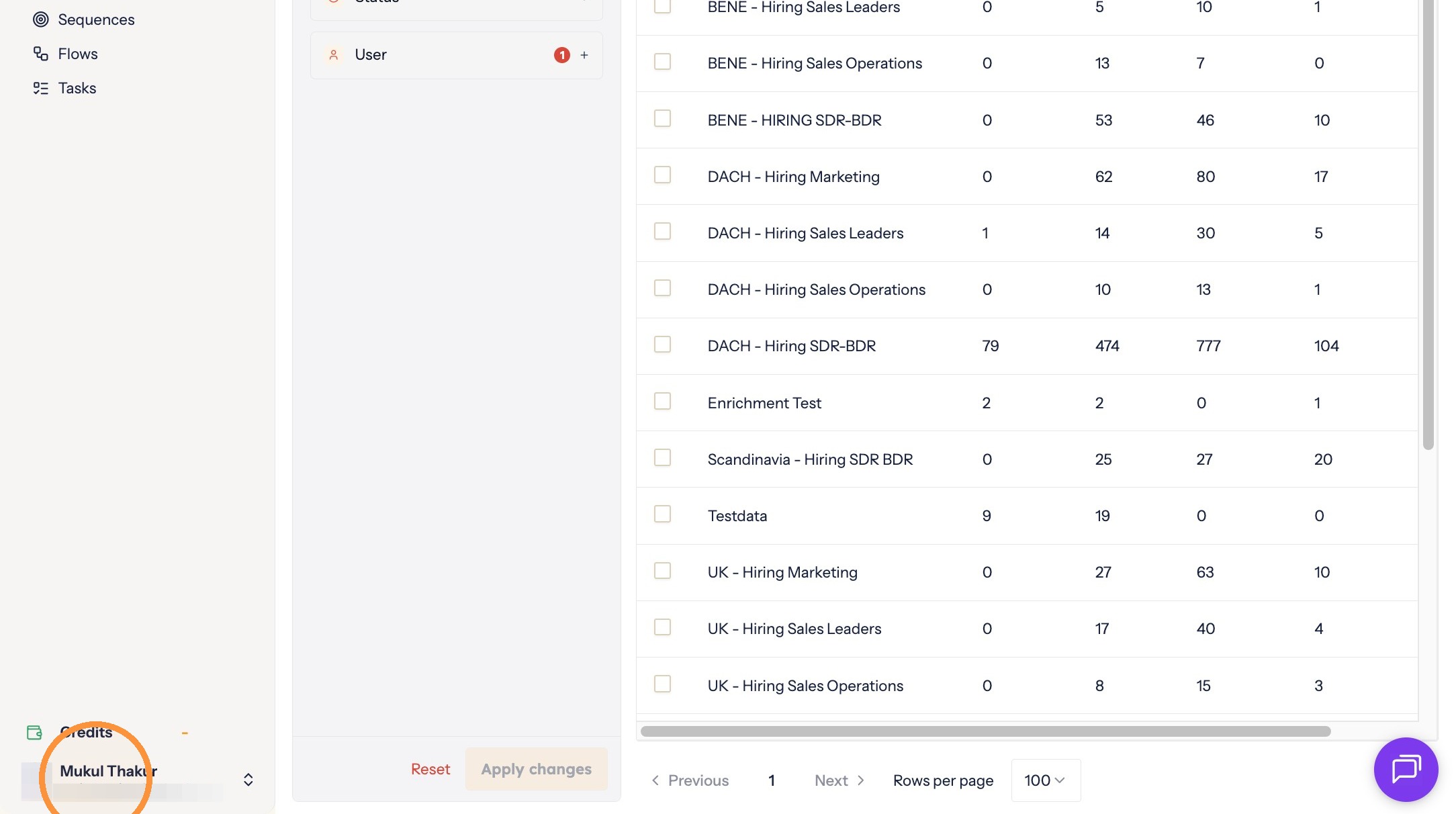
Opening the profile menu -
Click Suppression.
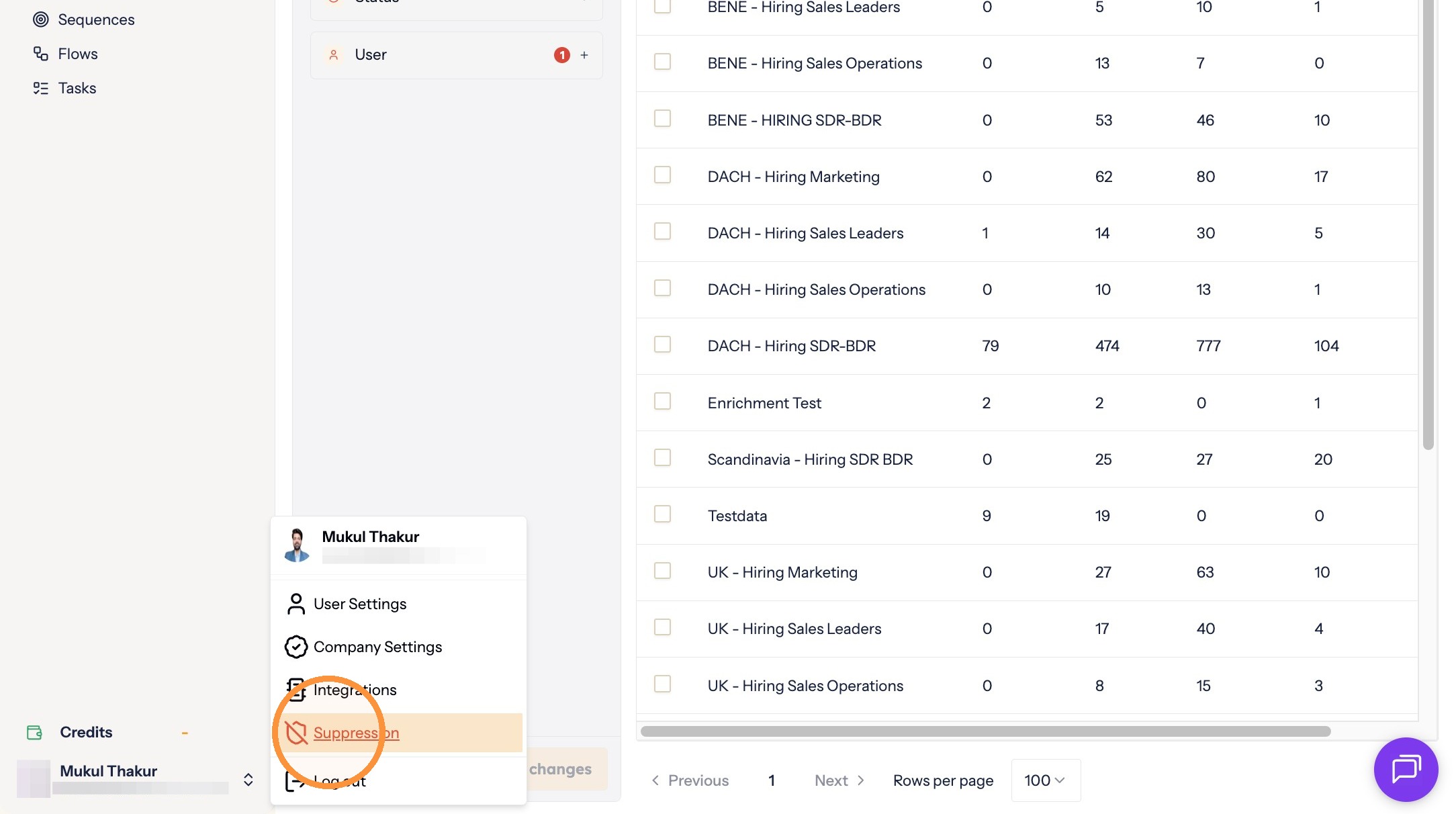
Opening the suppression list -
Type the email address or domain you want excluded from outreach.
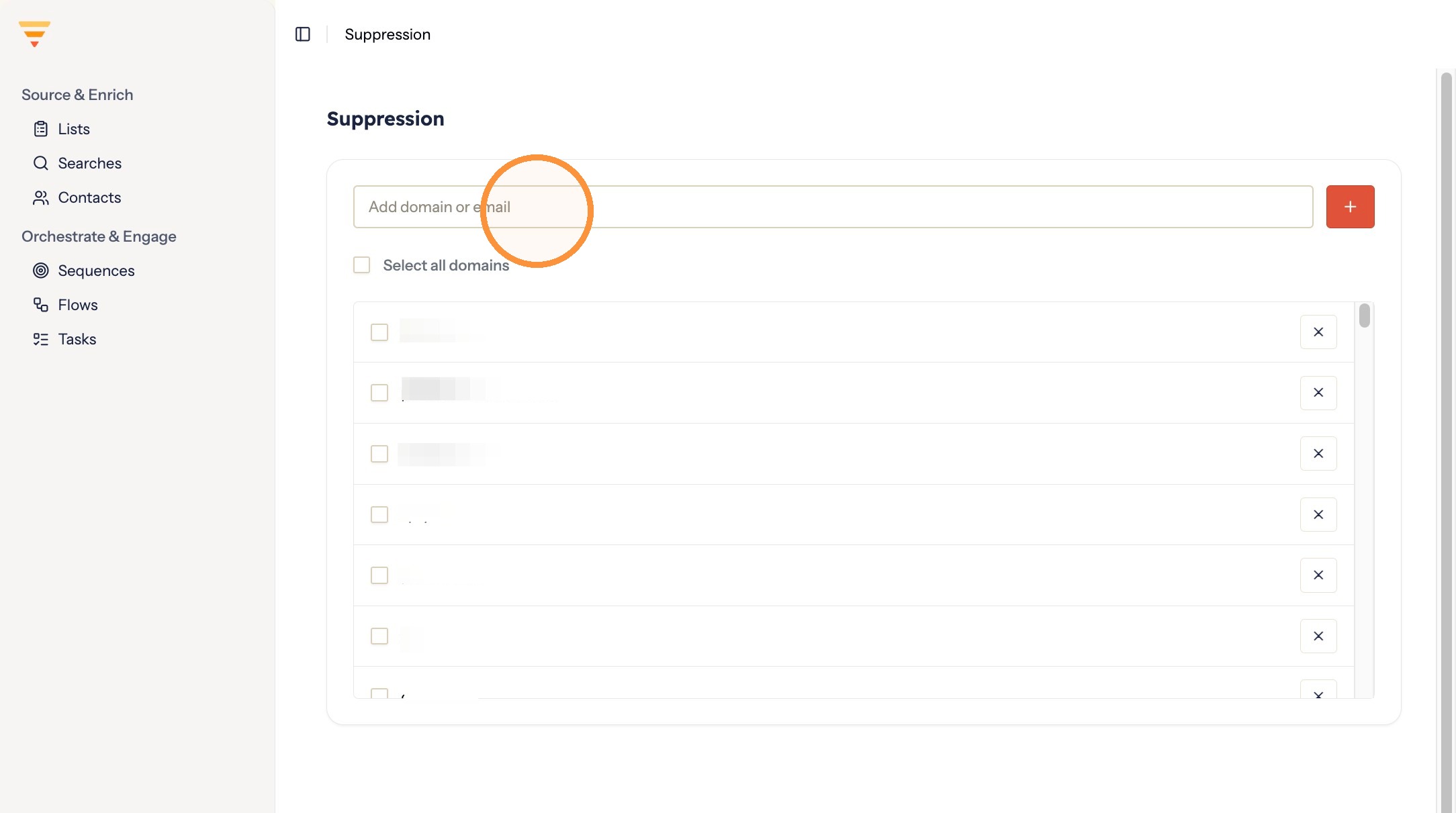
Entering the address or domain -
Click the + button to add it to the list.
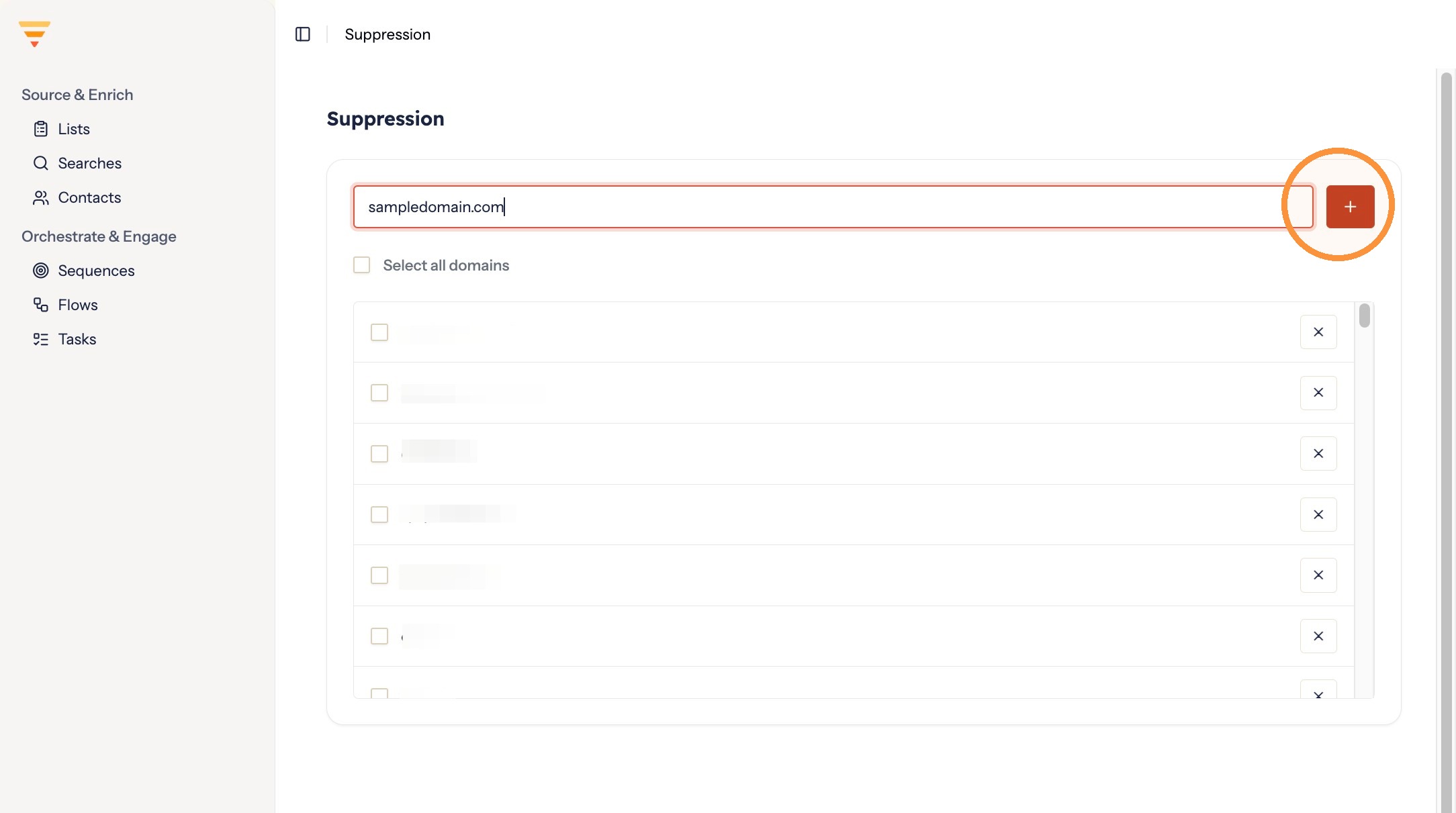
Adding to the list
Remove an email or domain from the list
-
Find the entry in the suppression list and tick the checkbox next to it.
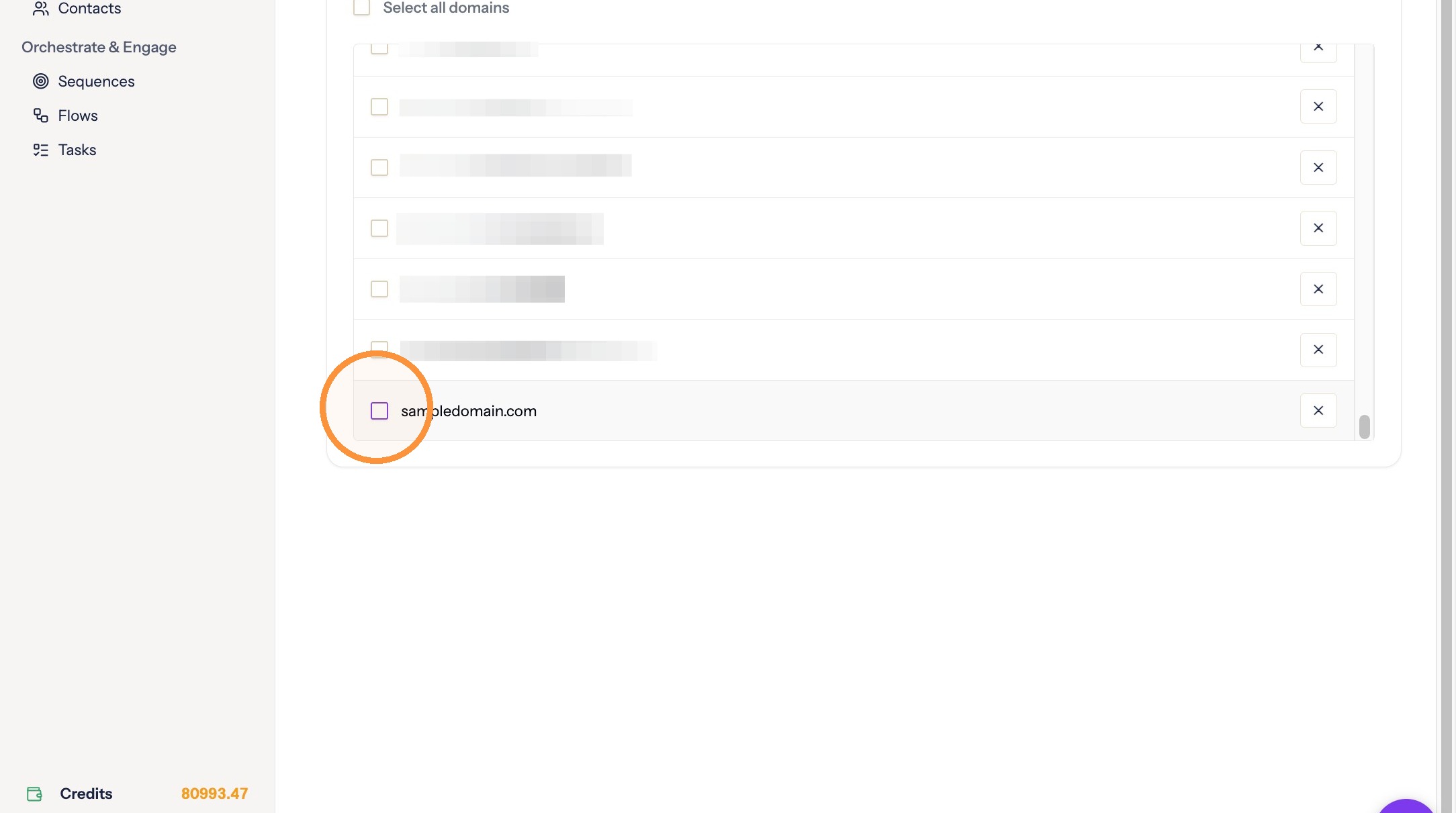
Selecting the entry -
Click Remove Selected.
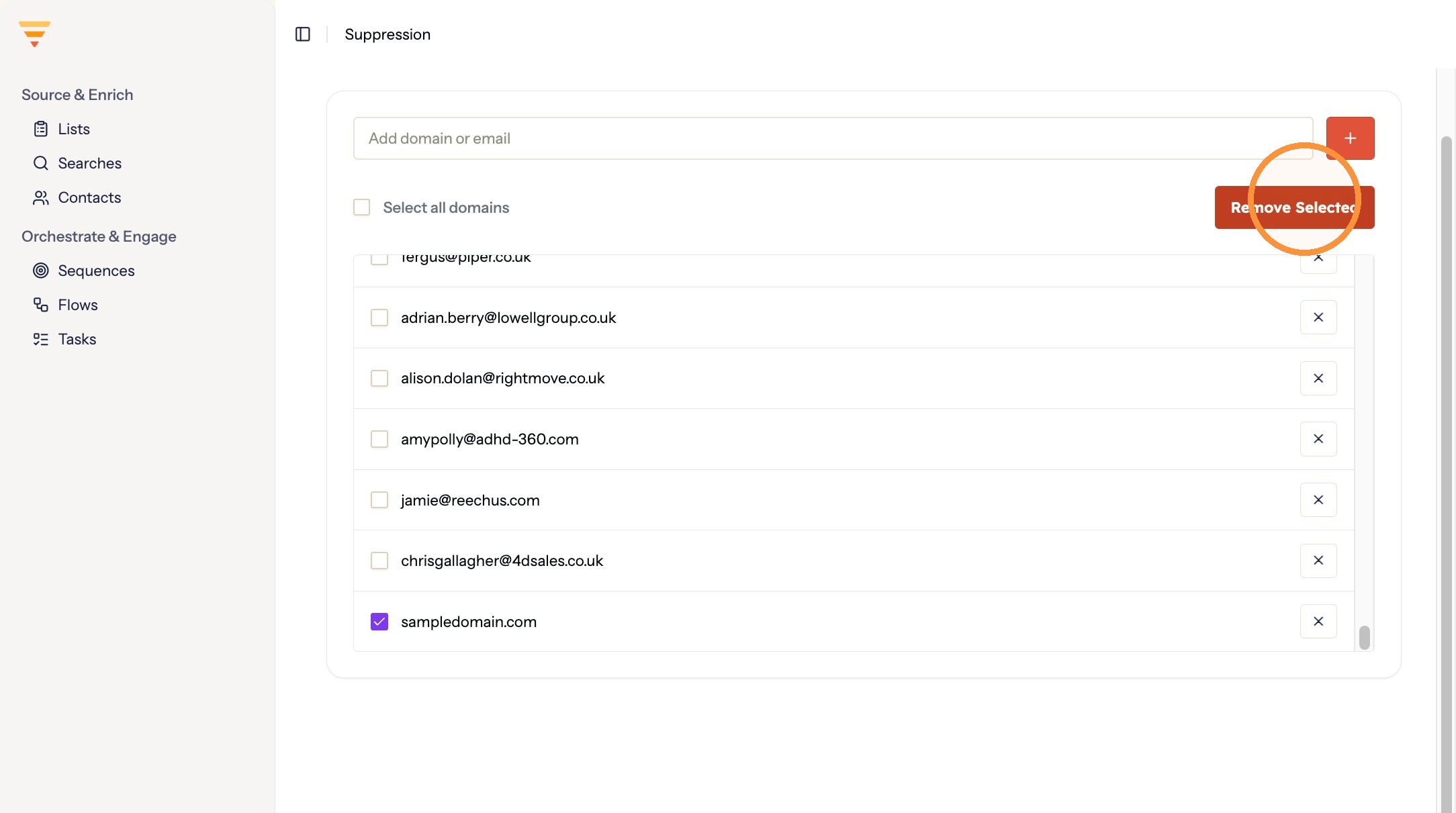
Removing the entry
Your suppression list is set. Anything on it is skipped the next time a flow sends, and you can add to it or clear entries at any point.
Interactive walkthrough
Click through every step at your own pace.
The walkthrough loads from Scribe only after you click, so nothing third party runs on the page until then.
Common questions
What is a suppression list?
The set of email addresses and domains you do not want hubsell to contact, such as competitors or anyone else who should stay out of your outreach. Anything on the list is skipped when a flow sends.
What is the difference between suppressing an email address and a domain?
An email address blocks one person. A domain blocks everyone at that company.
Related articles
- Set up your personal and company accountComplete your personal profile and your company profile in hubsell. It takes about two minutes and gets both ready before you connect a mailbox.
- Connect your mailbox and LinkedInConnect the mailbox and LinkedIn account hubsell sends from, so it can send email and run LinkedIn actions for you.
- Source data into hubsellGet contacts into a hubsell list from a LinkedIn or Sales Navigator search, or from a CSV file, then tag and enrich them ready for outreach.
- Connect your CRM accountConnect HubSpot, Salesforce or Pipedrive to hubsell so you can push contacts across when you are ready.