

Add contacts to a flow
Filter your contacts, select the ones you want, and add them to a flow so your outreach starts sending.
- Applies to
- All plans
- Before you start
- Contacts in a hubsell list, and a flow you have already built.
Adding contacts to a flow is what actually starts your outreach. The work is in the filtering: getting the right people selected before you hand them to the flow.
Filter your contacts
-
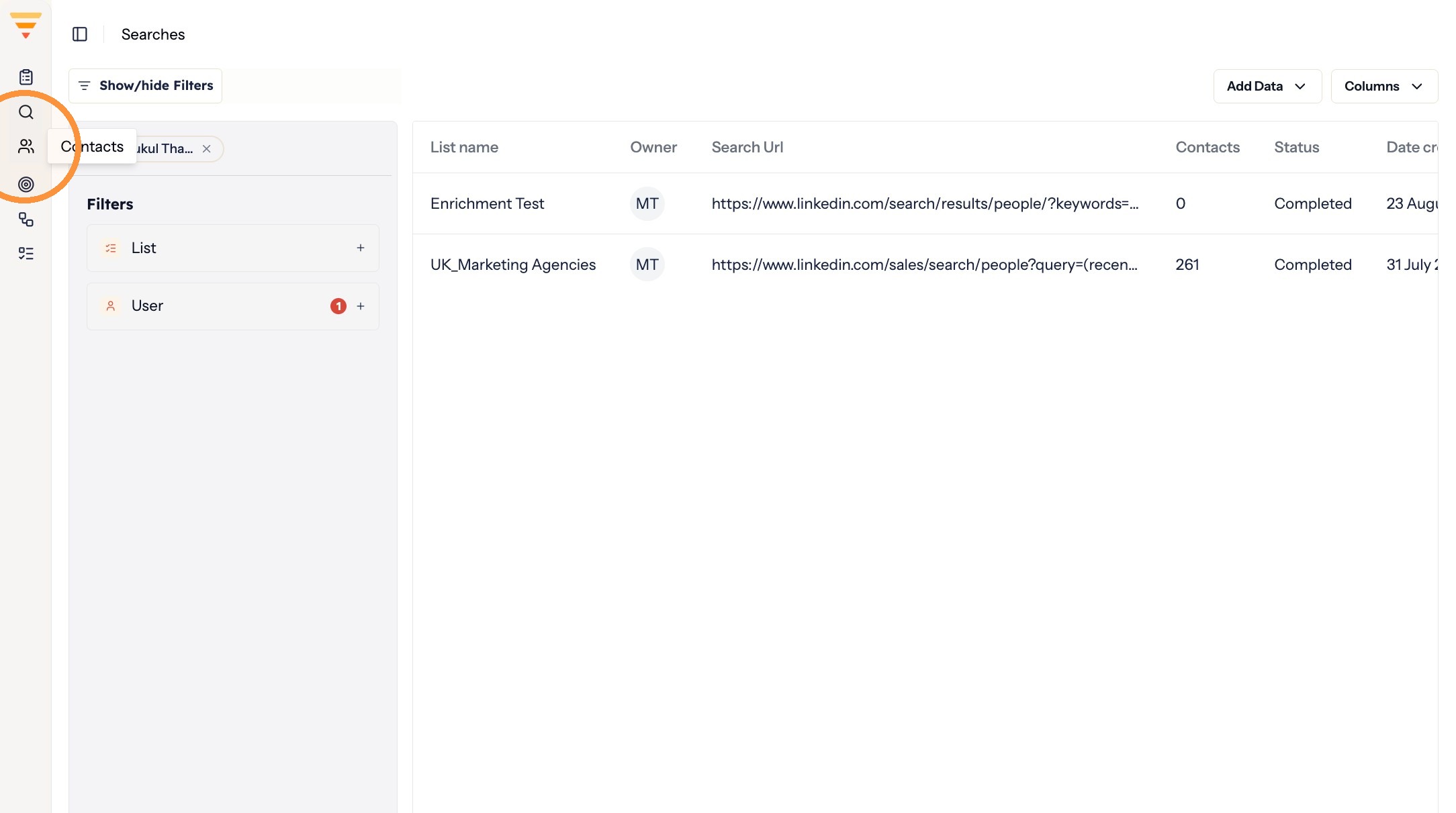
Click the Contacts icon.
Opening Contacts -
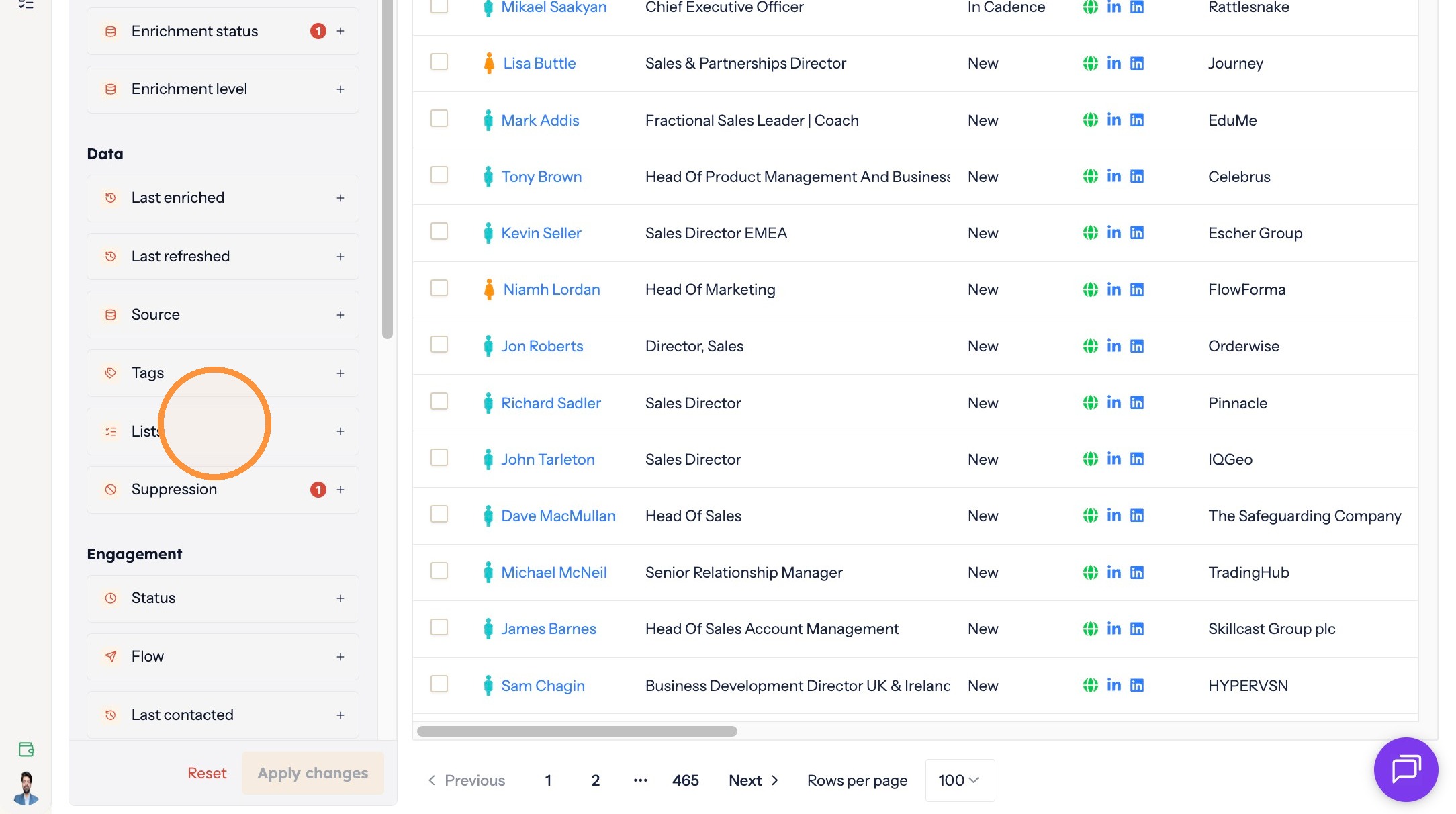
To filter by list, click Lists.
Filtering by list -
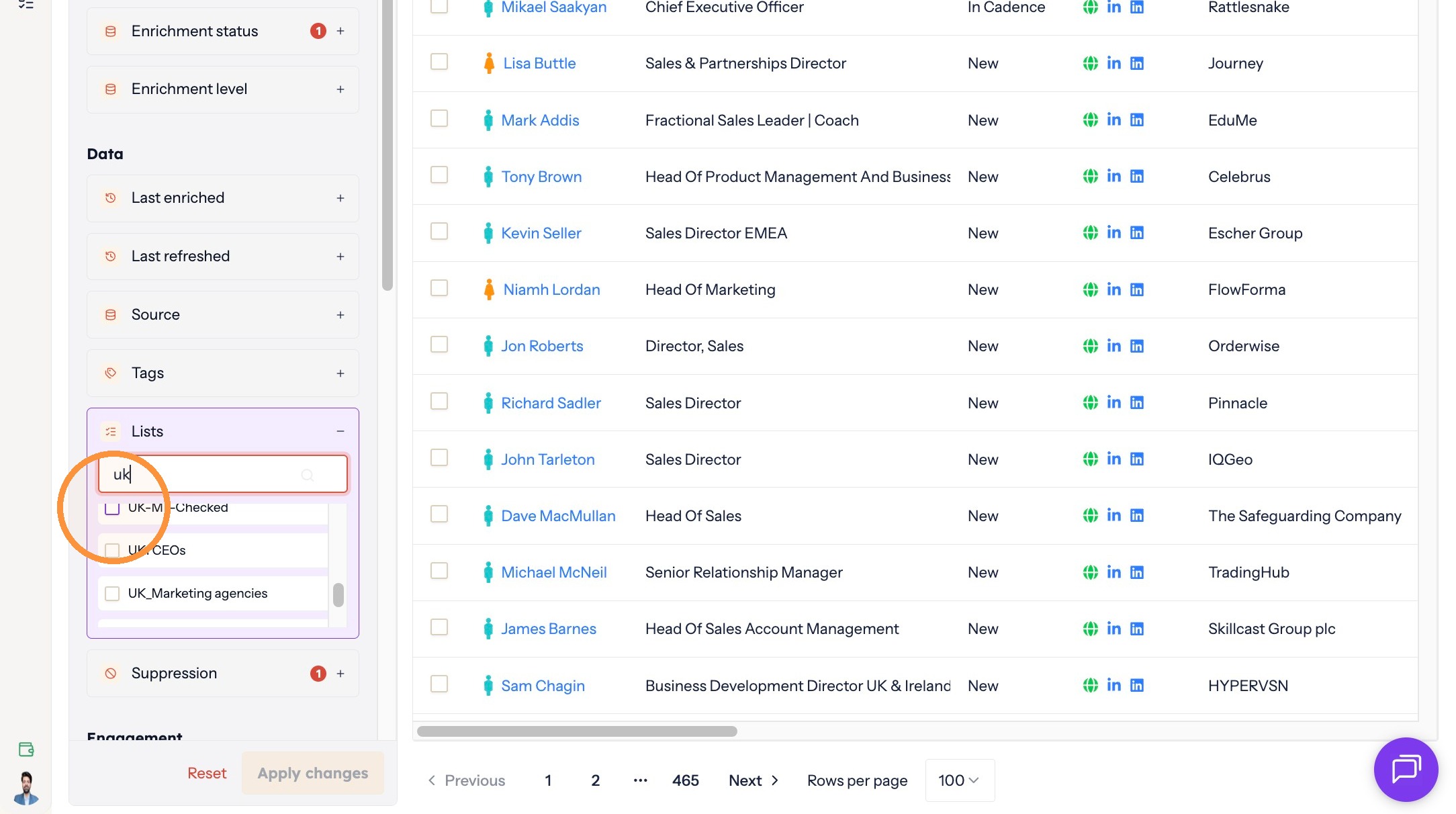
Select your list name.
Choosing your list -
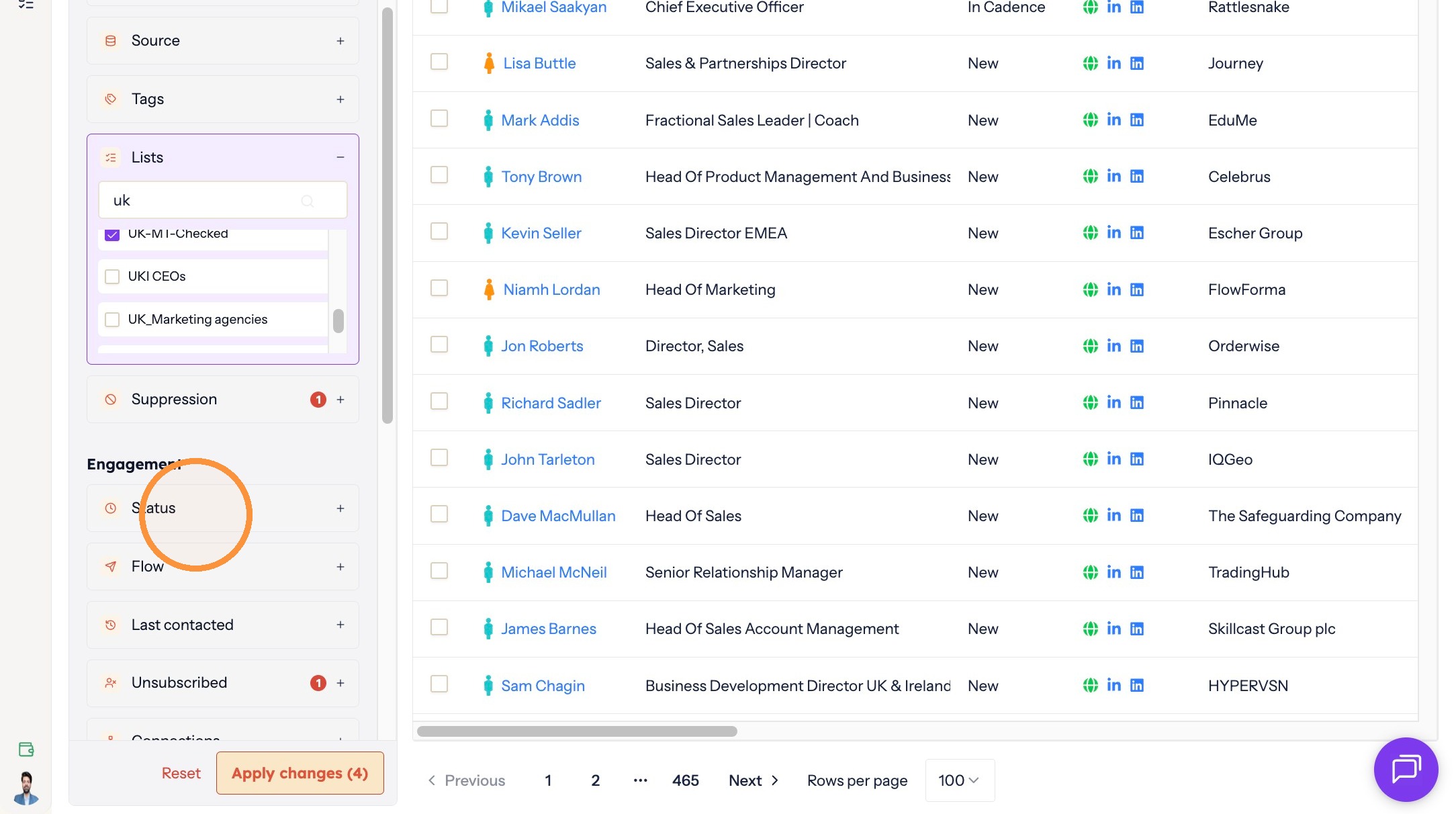
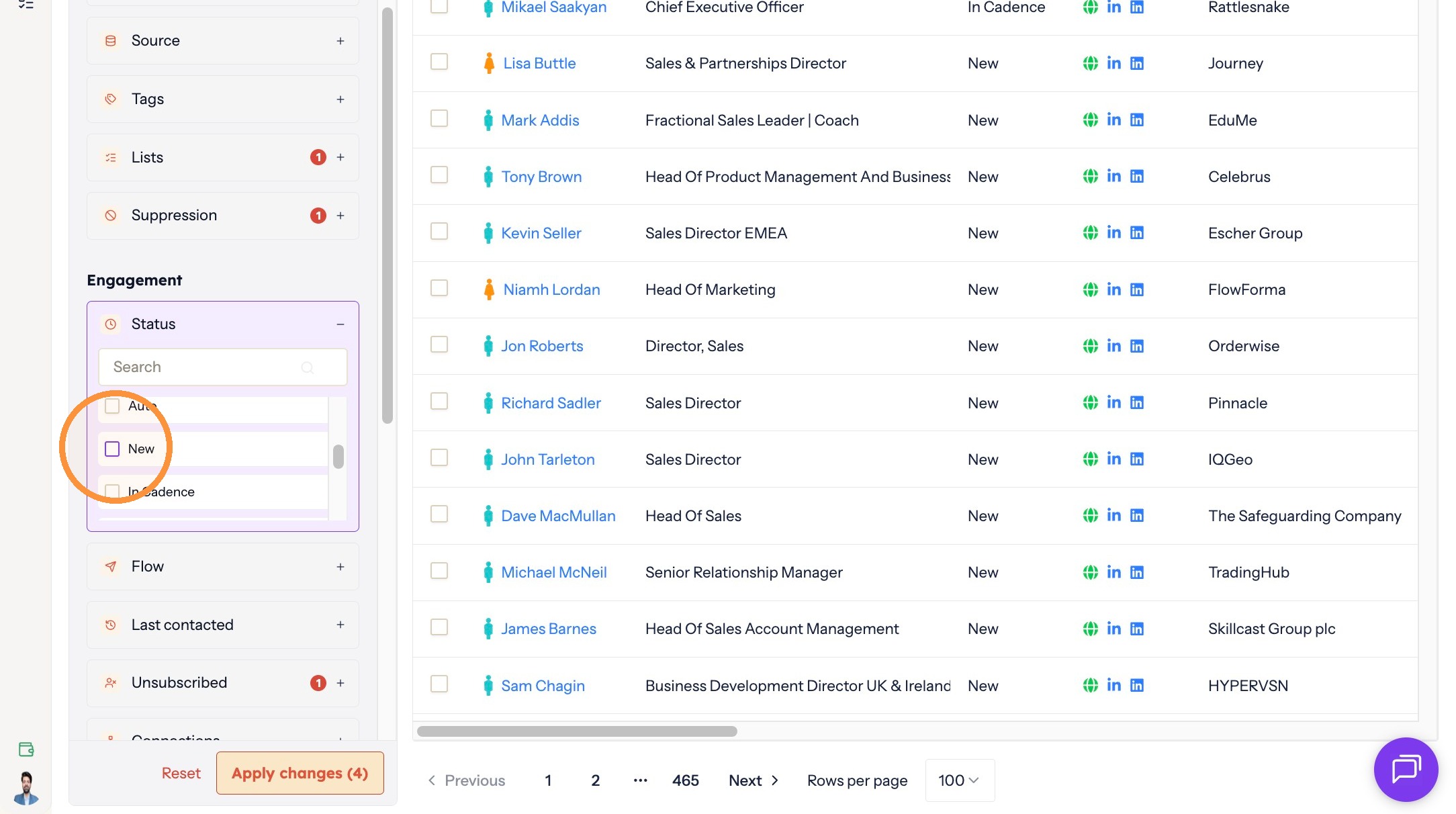
To leave out contacts already in another flow, click Status.
Opening the status filter -
Select New to get contacts who have never been contacted.
Filtering to new contacts -
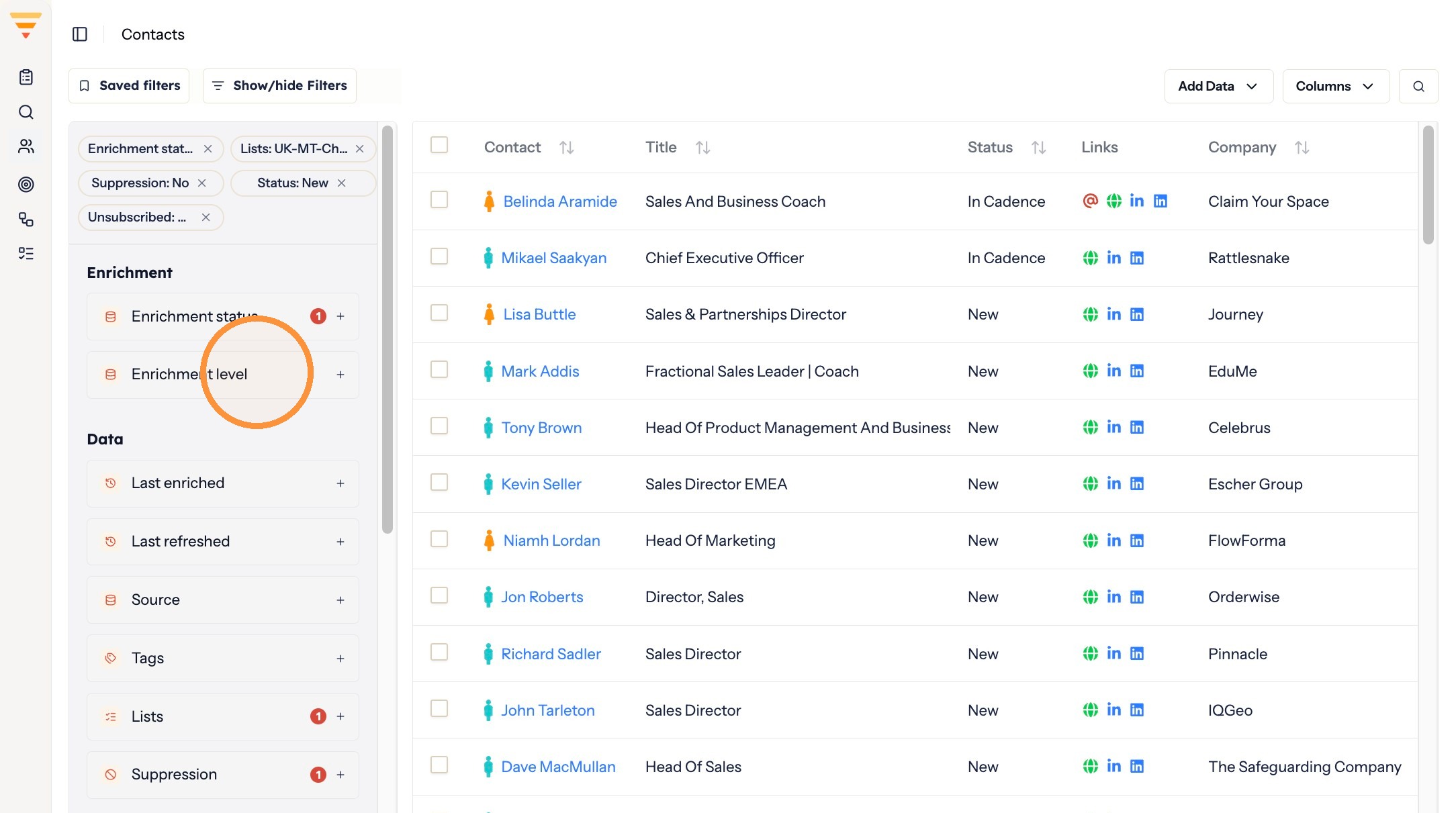
For an email flow, click Enrichment level to make sure every contact has an email address.
Opening the enrichment filter -
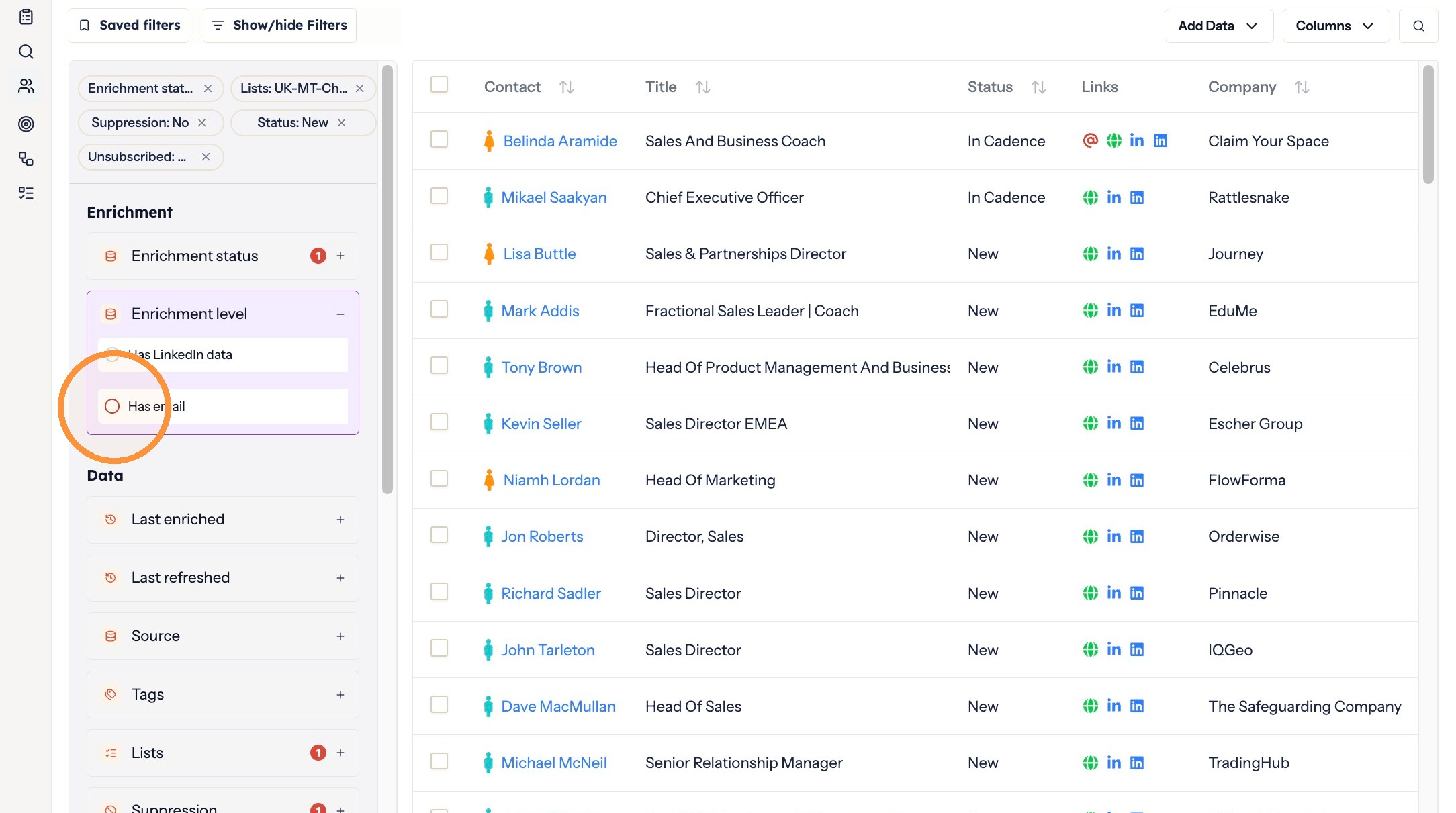
Select Has email.
Requiring an email address -
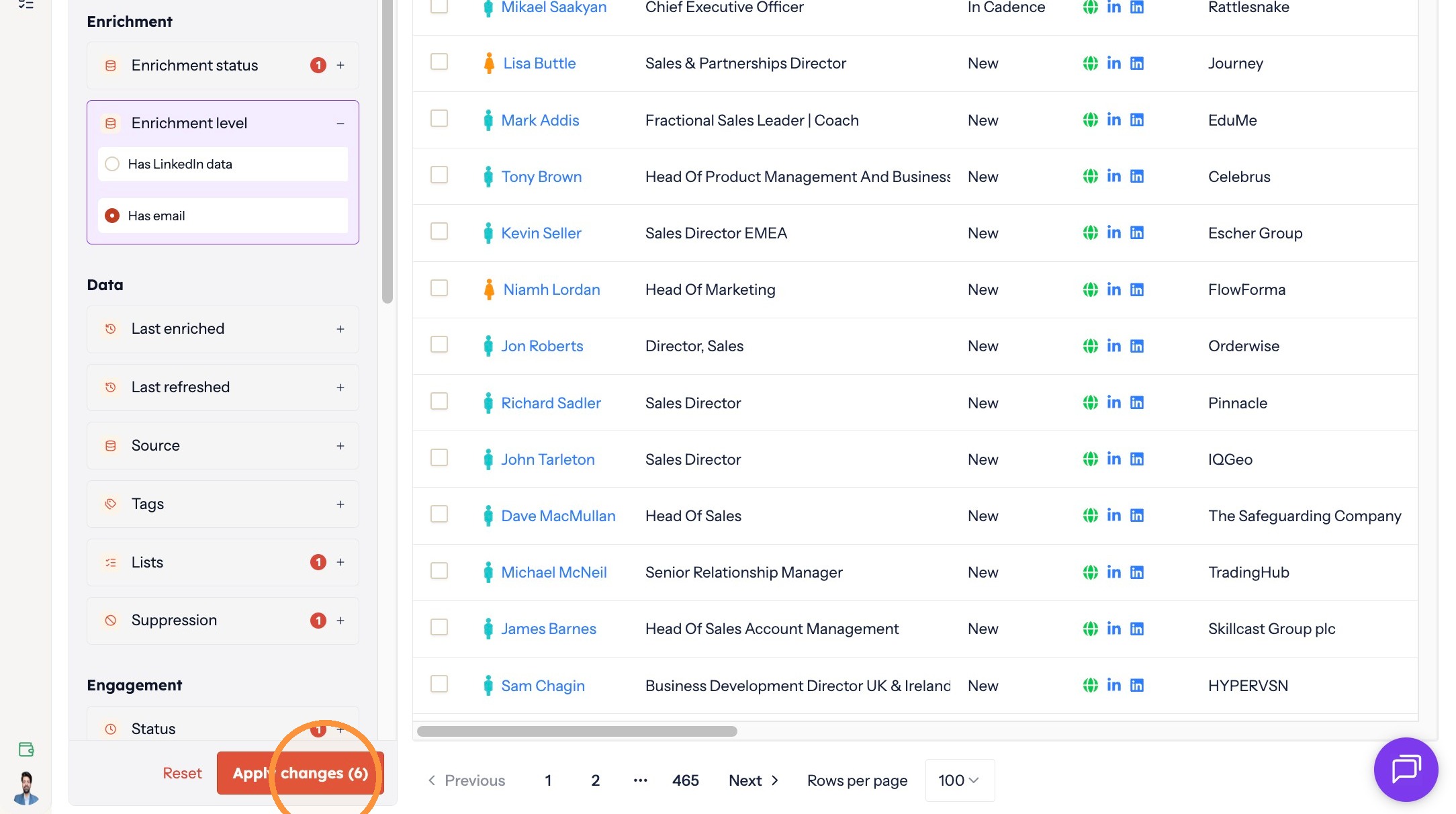
Click Apply changes.
Applying your filters
Select the contacts
-
Click Select all to take every filtered contact.
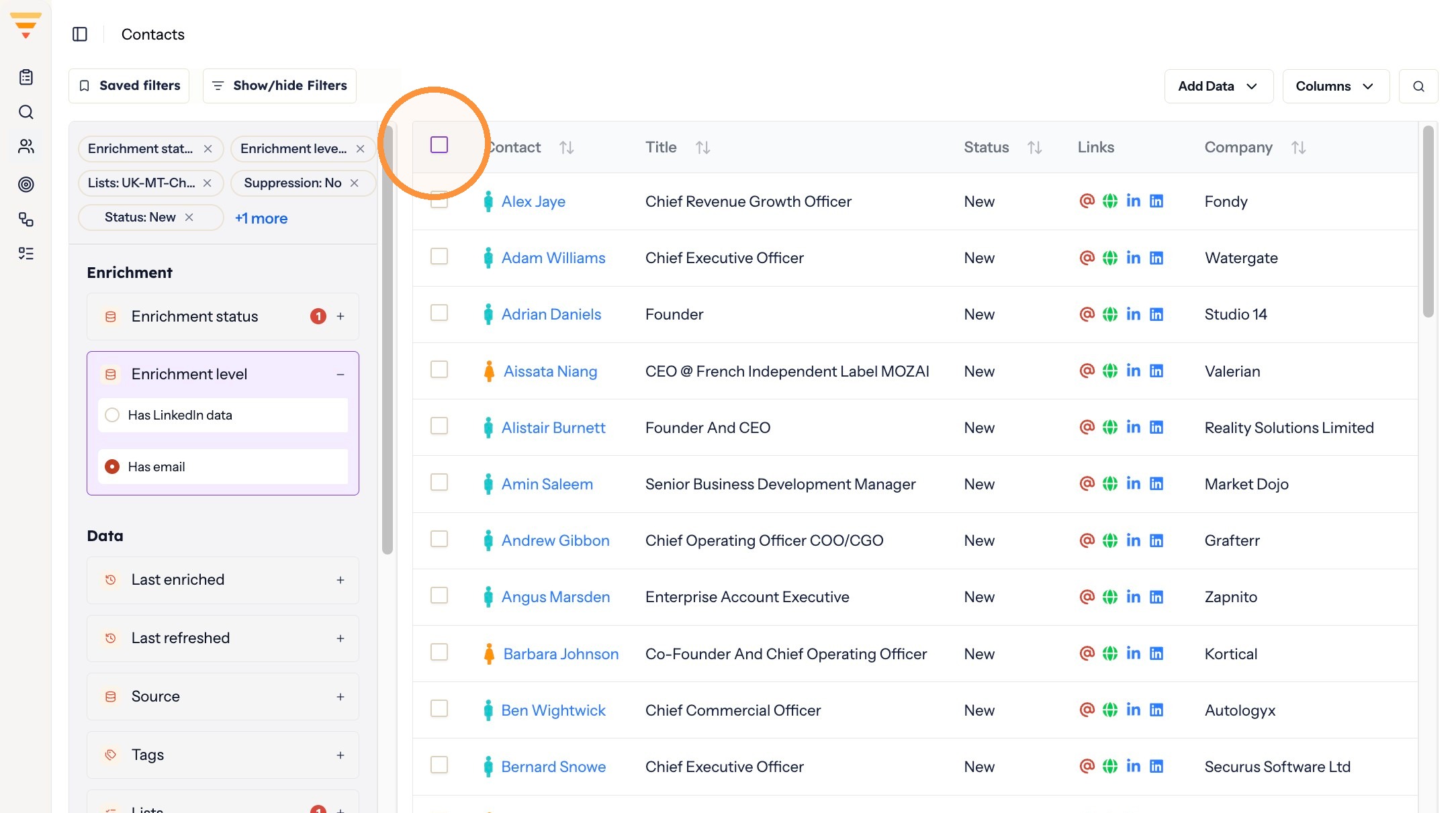
Selecting all filtered contacts -
Click Apply.
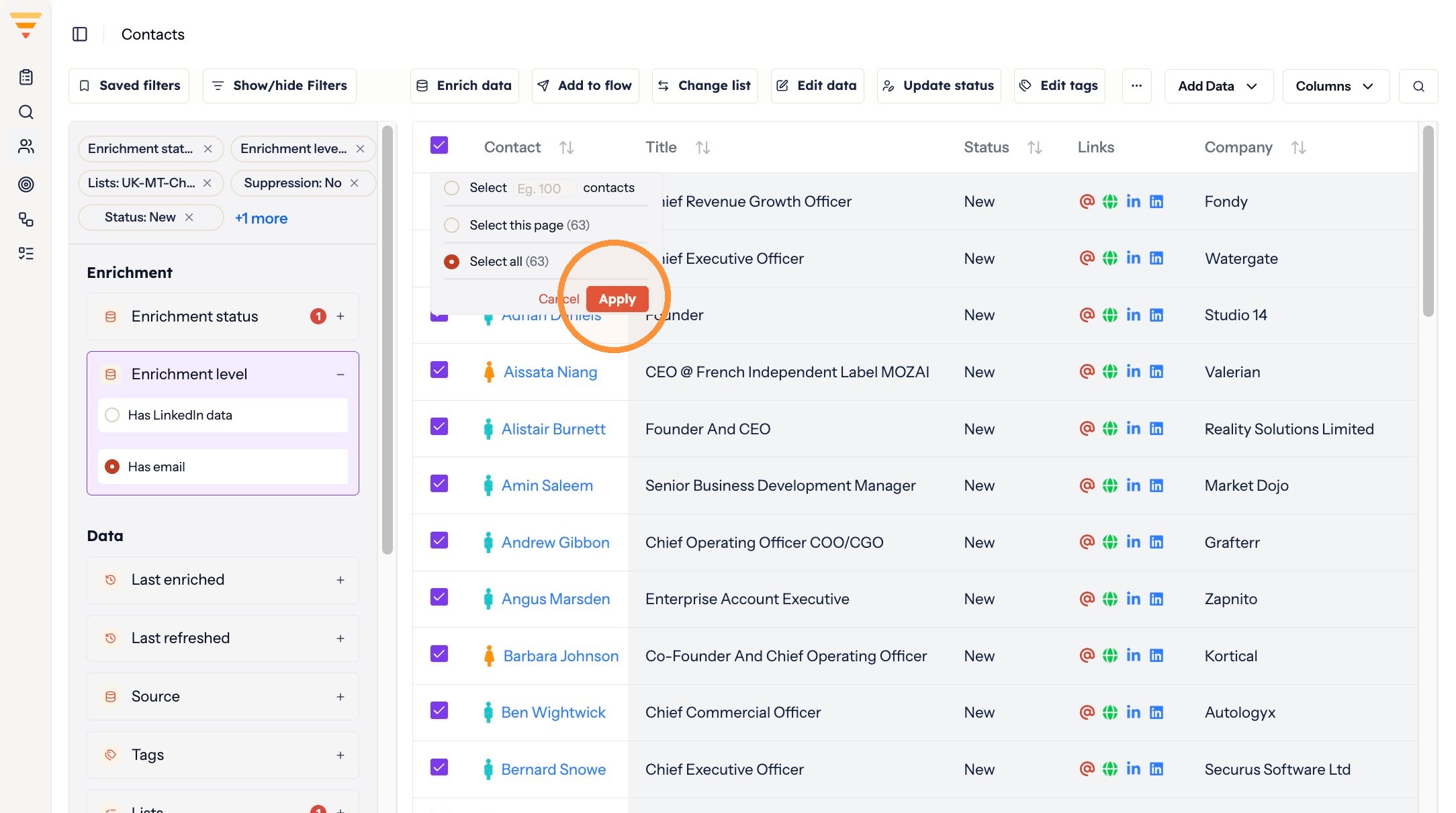
Confirming the selection
Assign them to the flow
-
Click Add to flow.
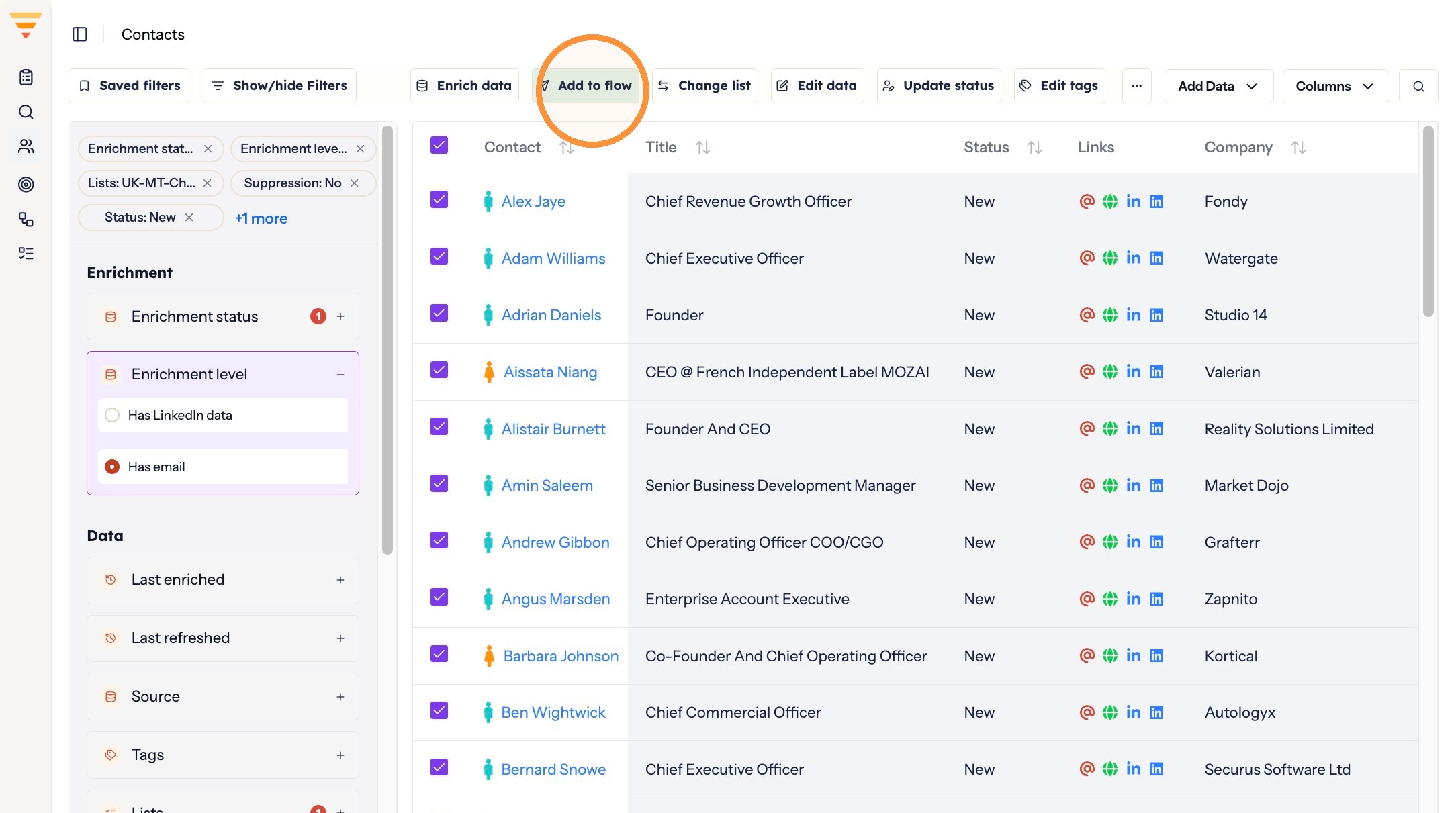
Starting the assignment -
Click Select a user to choose the account the outreach sends from.
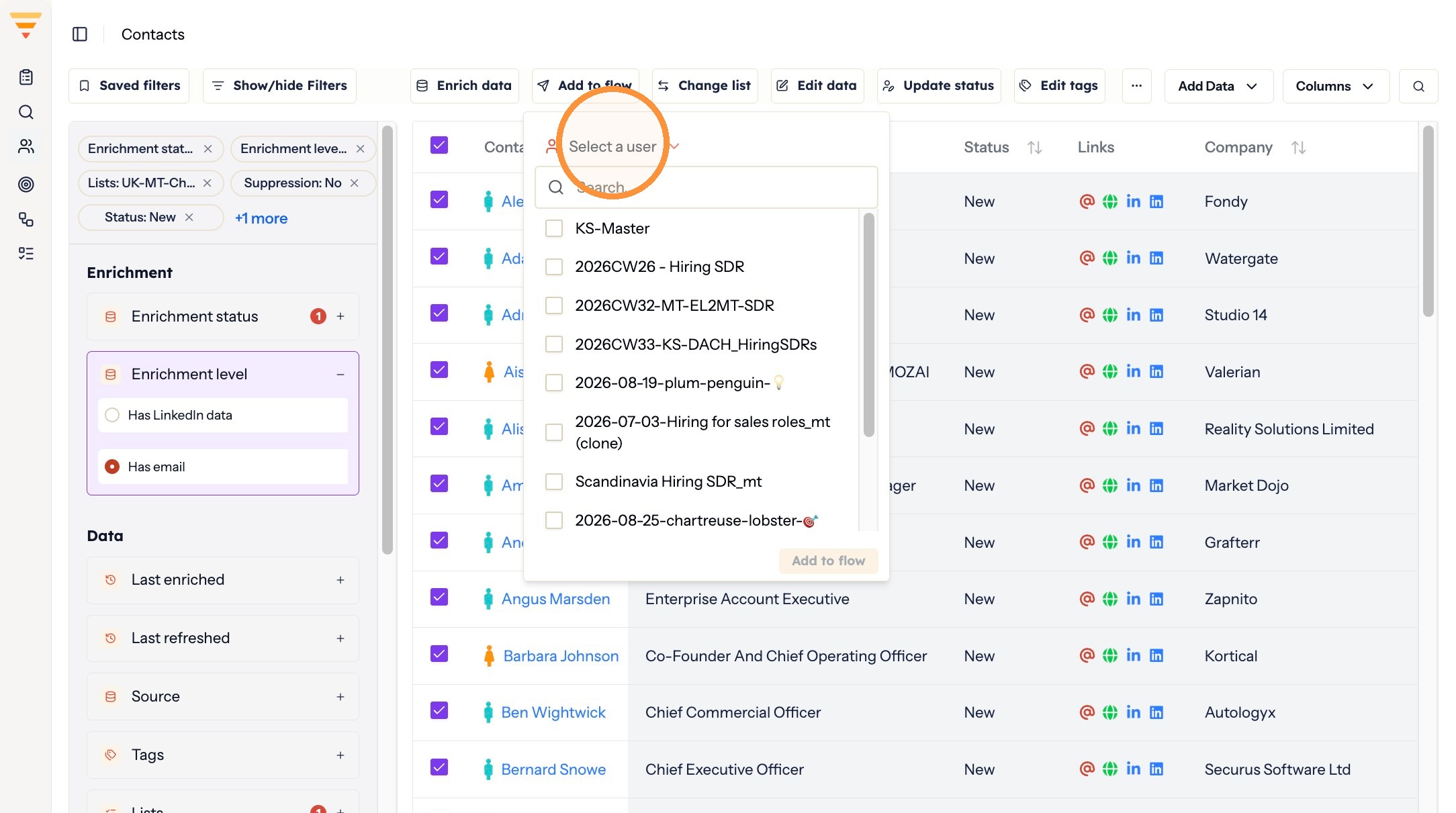
Choosing the sending account -
Select the user.
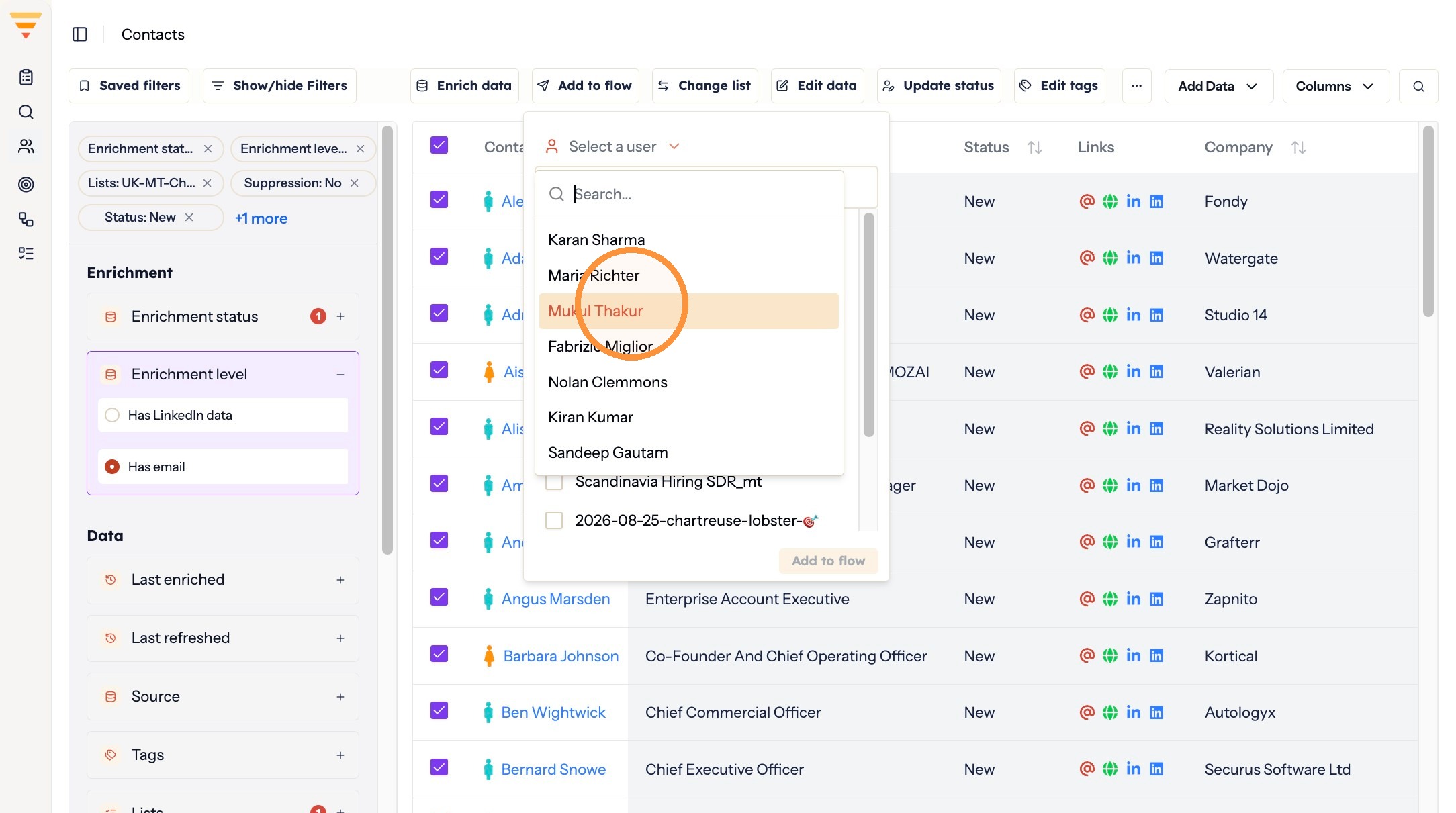
Picking the user -
Select the Flow name from the list.
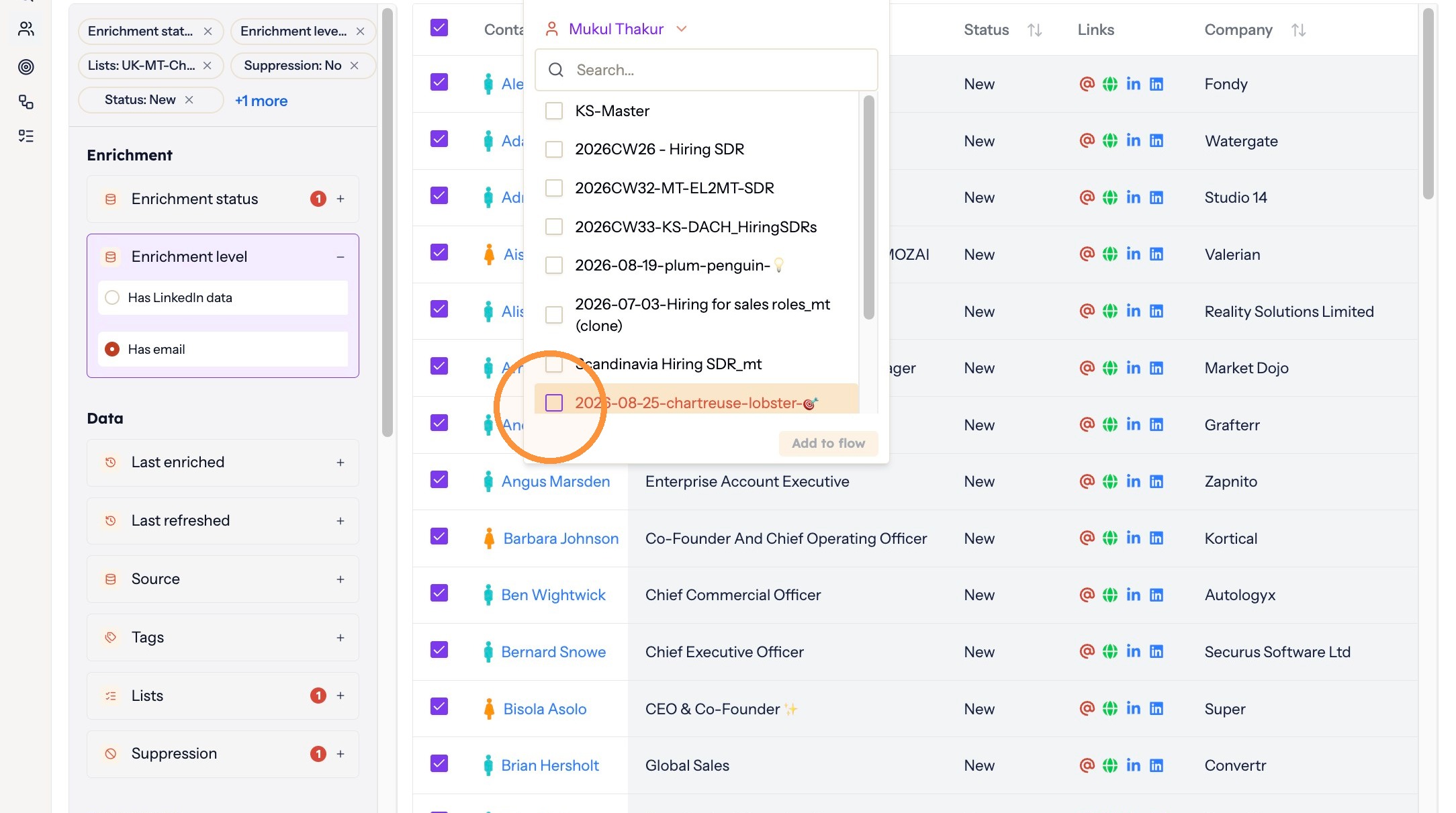
Choosing the flow -
Click Add to flow.
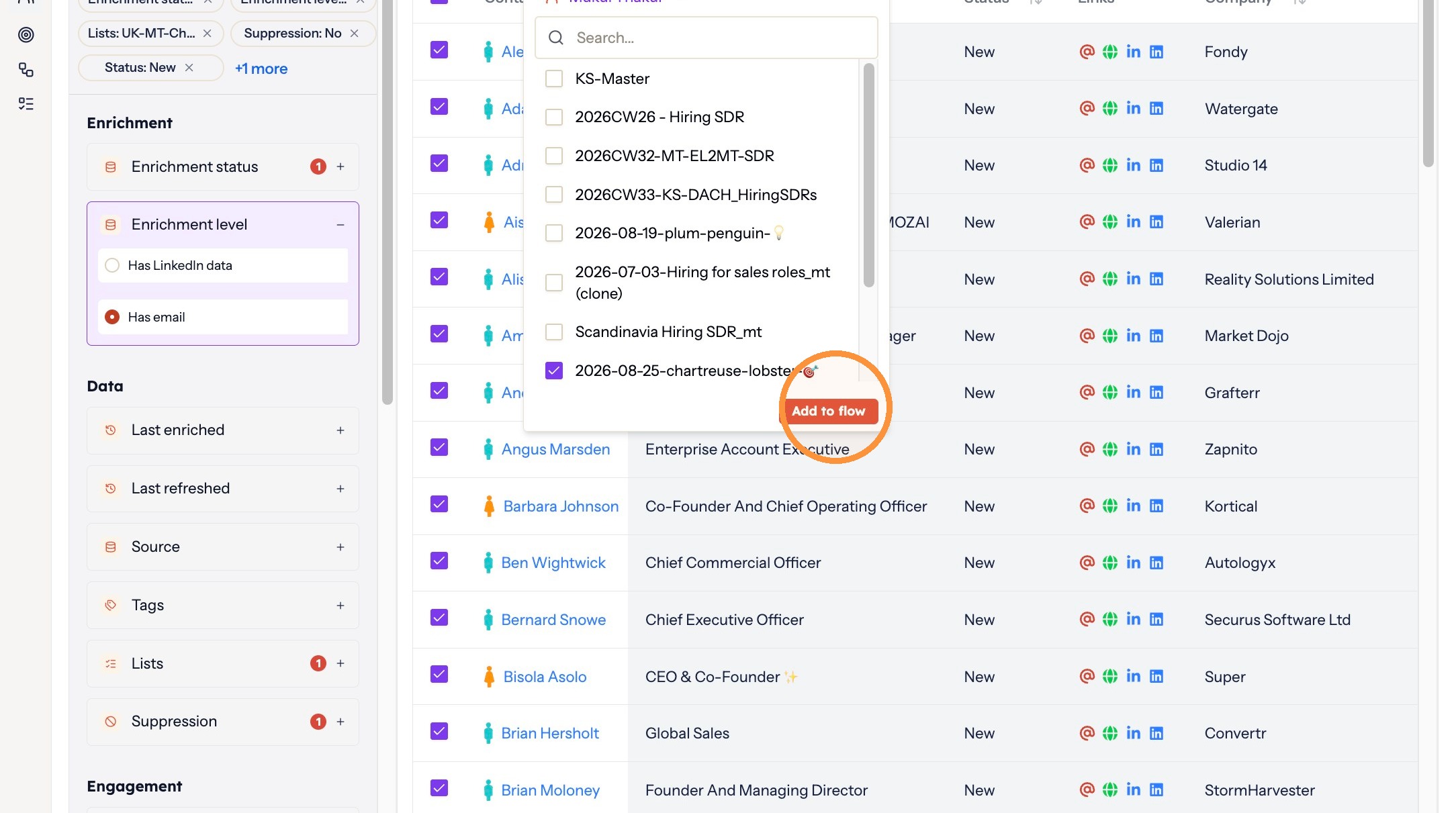
Confirming
Your contacts are in the flow. You can see them on the Flows page, and they start moving through your sequence within the schedule and limits you set.
Good to know
- Contacts can be added to a running flow at any time. They join the back of the queue.
- Contacts are skipped when a flow sends if they are suppressed, or have already replied.
Common mistakes
- The Add to flow button is greyed out. A user has to be picked at the top of the pop-up first. Only then can the flow be selected and the button becomes active.
- Contacts do not match the flow's channel. Contacts without an email are skipped in an email flow, and contacts without a LinkedIn profile get permanently stuck at the connection request step. Filter on Has email or LinkedIn URL before selecting, or route them into a sequence for the channel they do have.
Interactive walkthrough
Click through every step at your own pace.
The walkthrough loads from Scribe only after you click, so nothing third party runs on the page until then.
Common questions
Can I add contacts to a flow that is already running?
Yes. Contacts can be added at any time, and they join the back of the queue.
What does the New status filter do?
It selects contacts who have never been contacted, whether freshly imported or already in your database. This is what stops you re-targeting people you have already reached.
Why is the Add to flow button greyed out?
A user has to be picked at the top of the pop-up first. Only then can the flow be selected and the button becomes active.
Related articles
- Set up your personal and company accountComplete your personal profile and your company profile in hubsell. It takes about two minutes and gets both ready before you connect a mailbox.
- Connect your mailbox and LinkedInConnect the mailbox and LinkedIn account hubsell sends from, so it can send email and run LinkedIn actions for you.
- Source data into hubsellGet contacts into a hubsell list from a LinkedIn or Sales Navigator search, or from a CSV file, then tag and enrich them ready for outreach.
- Connect your CRM accountConnect HubSpot, Salesforce or Pipedrive to hubsell so you can push contacts across when you are ready.