

Isolate contacts with no email address or LinkedIn URL
Find the contacts a flow would skip, and move them into a list of their own so they do not sit unnoticed in your outreach.
- Applies to
- All plans
- Before you start
- Contacts already in a hubsell list.
Contacts with no email address are skipped when a flow sends, and contacts with no LinkedIn URL get stuck at a connection request step. You can filter for either case and move those contacts into a list of their own.
Filter on one field at a time. Isolating missing emails and missing LinkedIn URLs separately means each set lands in its own list, ready for the channel it can still be reached on.
Create the destination list
-
Click the Lists icon in the left sidebar.
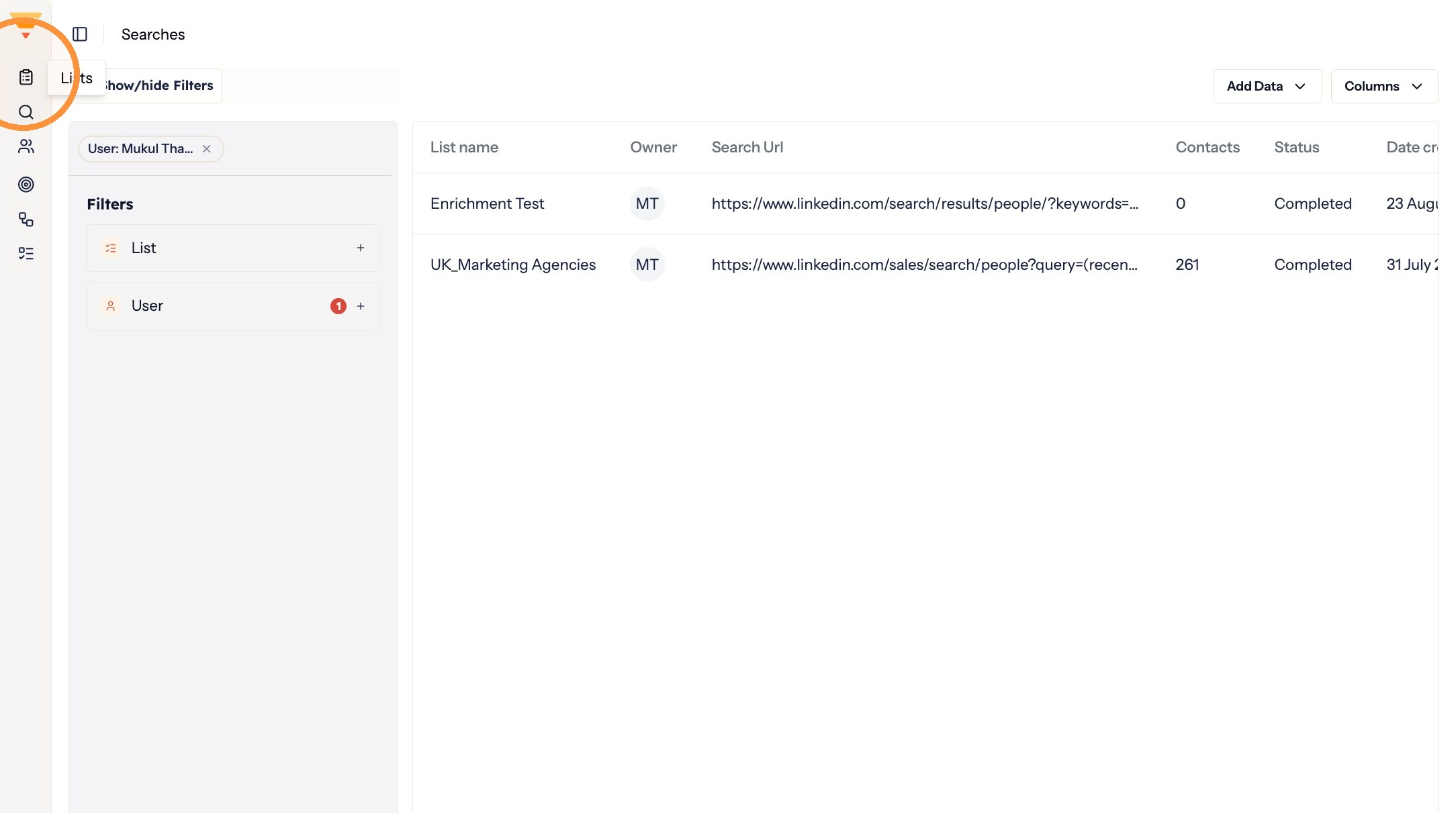
Opening Lists -
Click Create New List.
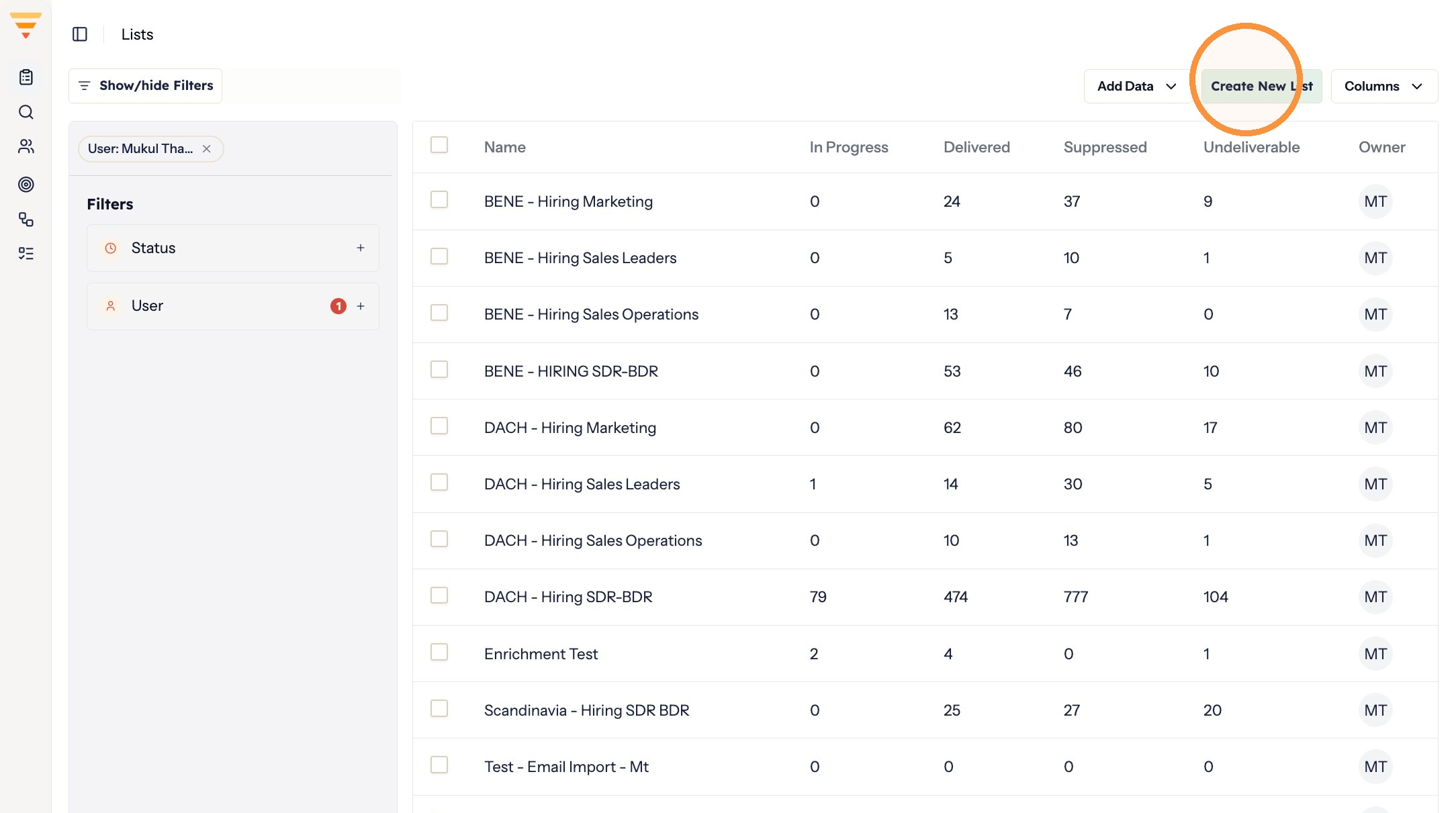
Creating a list -
Type a name for the list and click Submit. A name that says what is in it, such as "without email", saves guessing later.
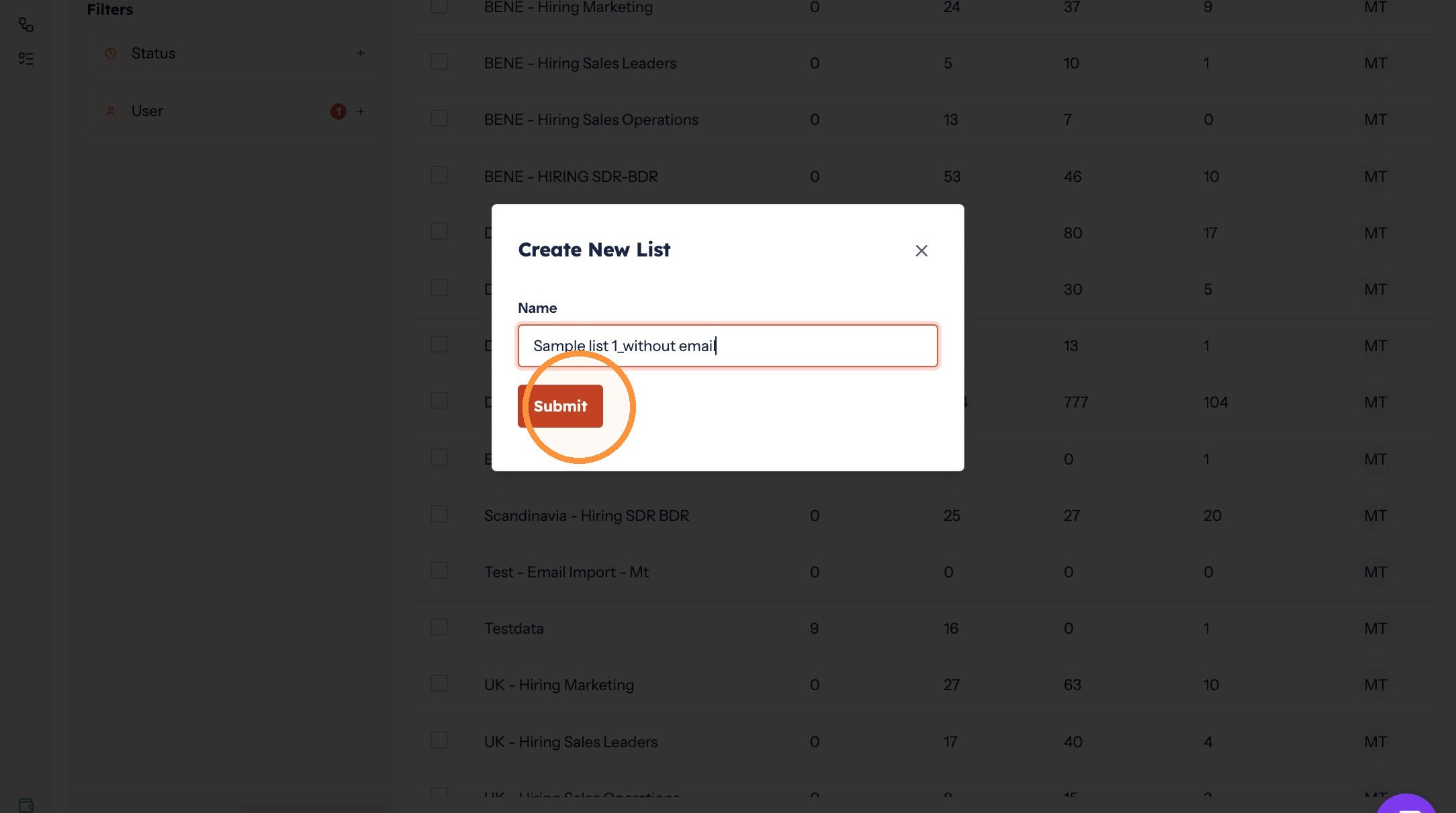
Naming the list
Filter for the missing field
-
Click the Contacts icon in the left sidebar.
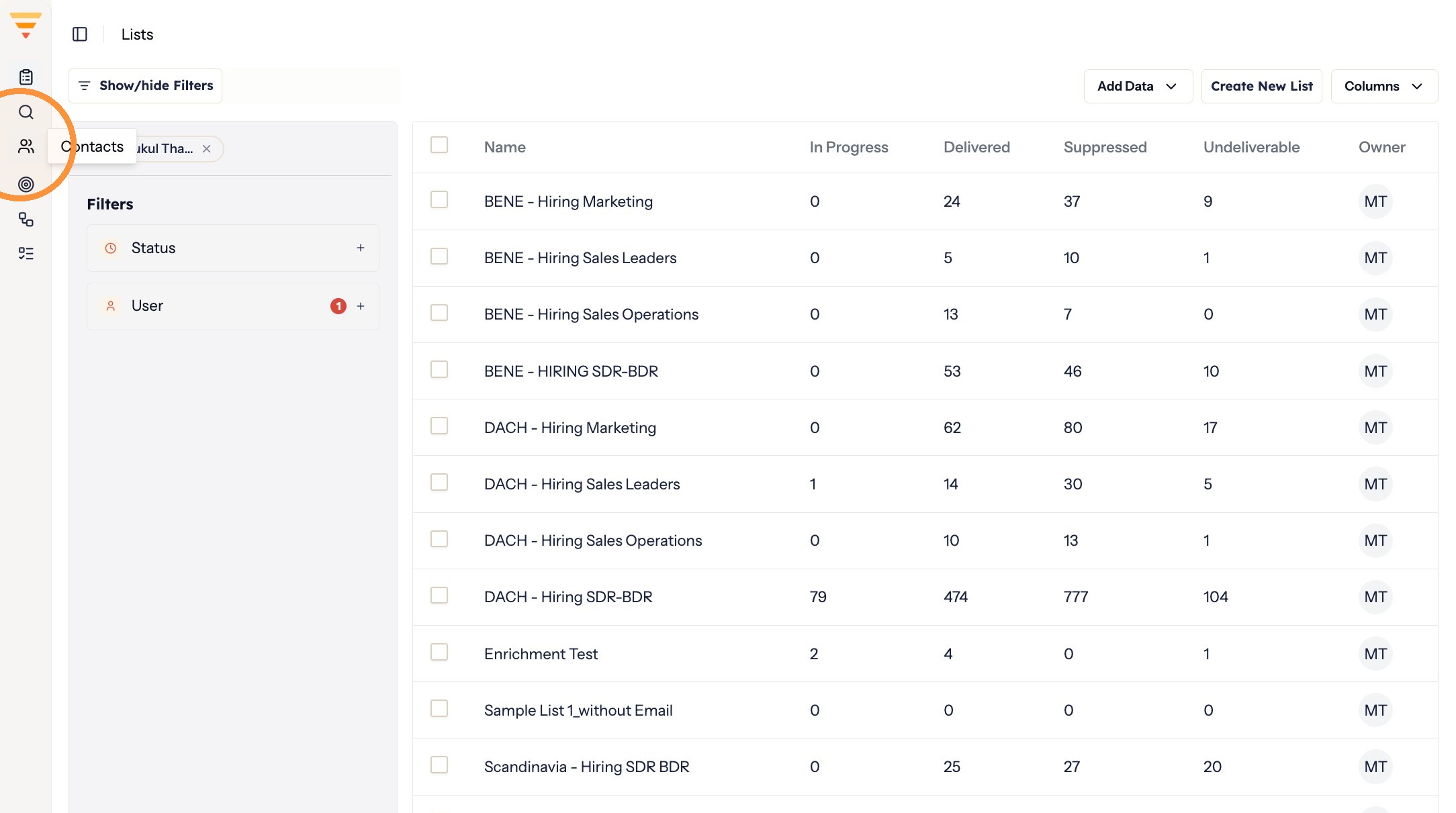
Opening Contacts -
Remove every existing filter from the filter bar, so nothing is excluded before you start.
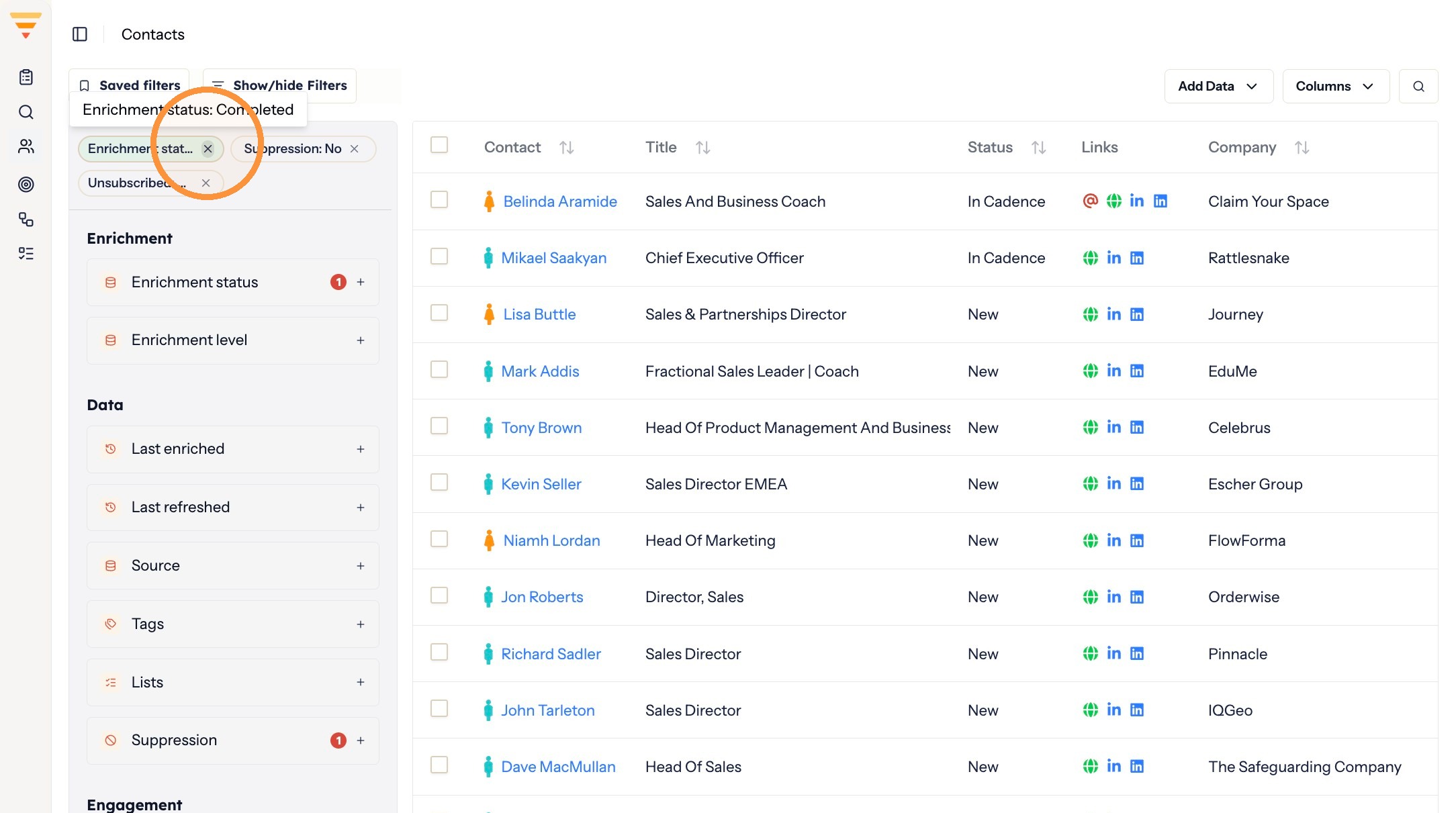
Clearing the filter bar -
Click Lists in the filter panel.
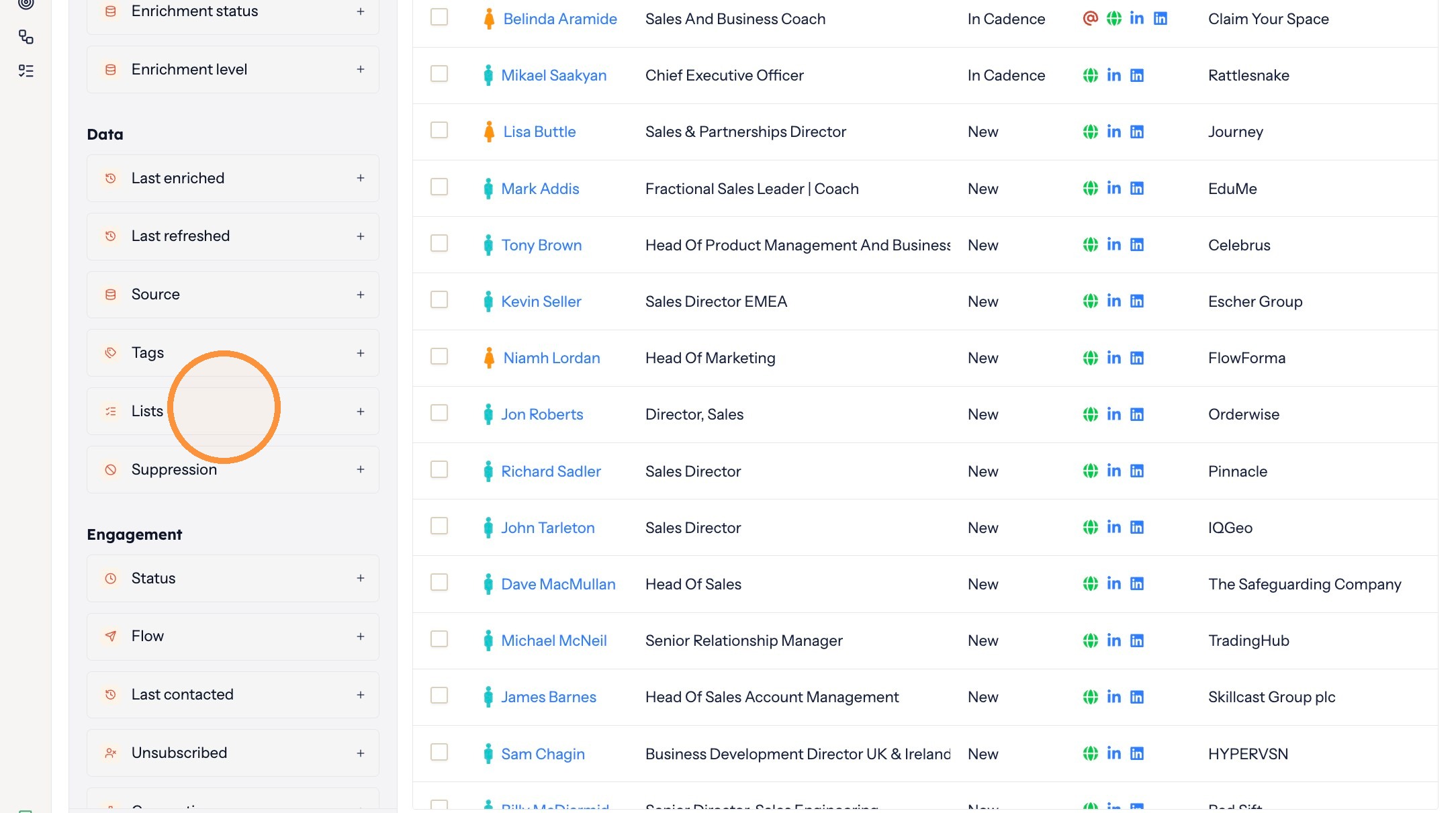
Opening the list filter -
Type the name of the list you want to search in.
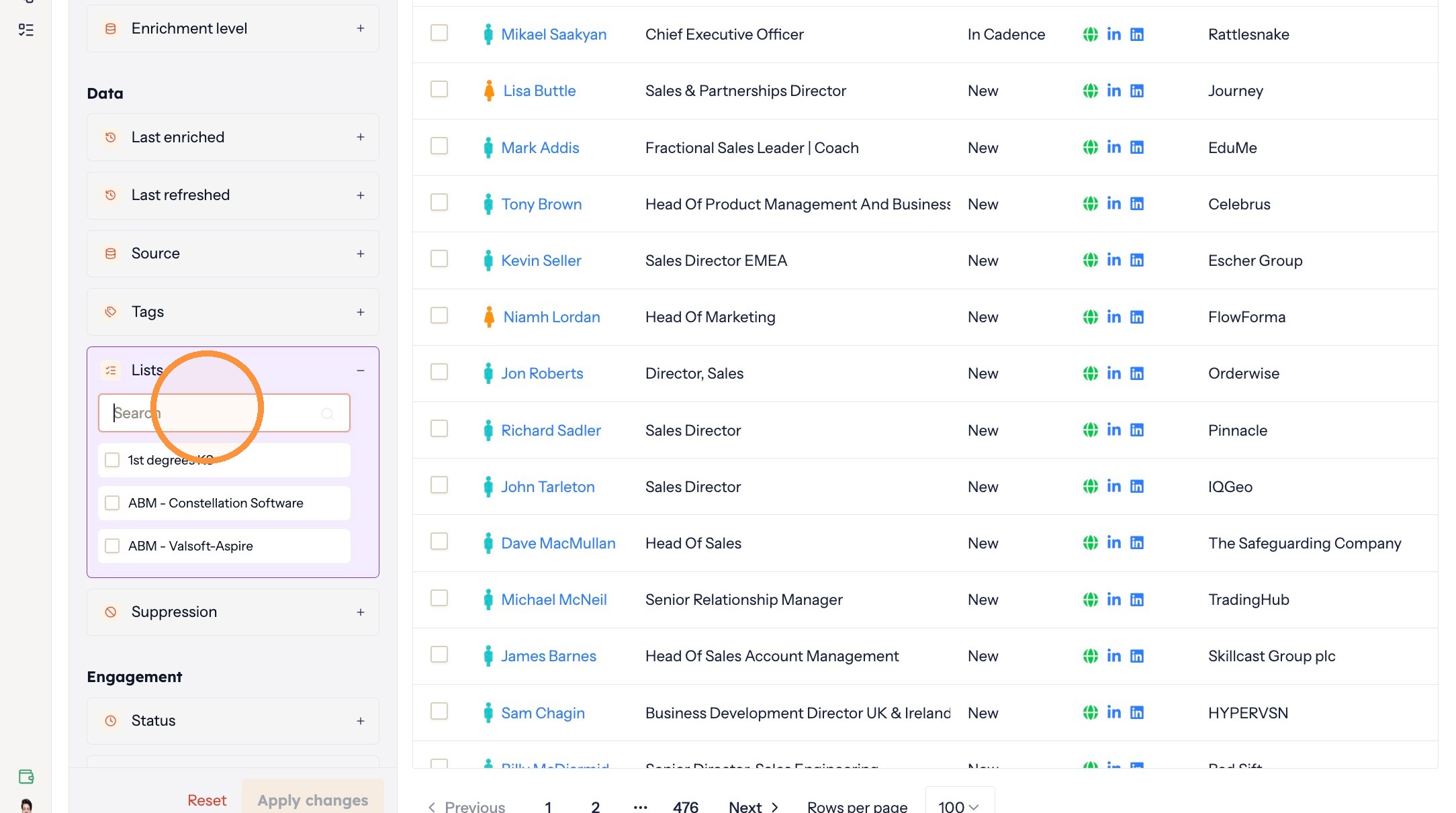
Choosing where to search -
Select the list.
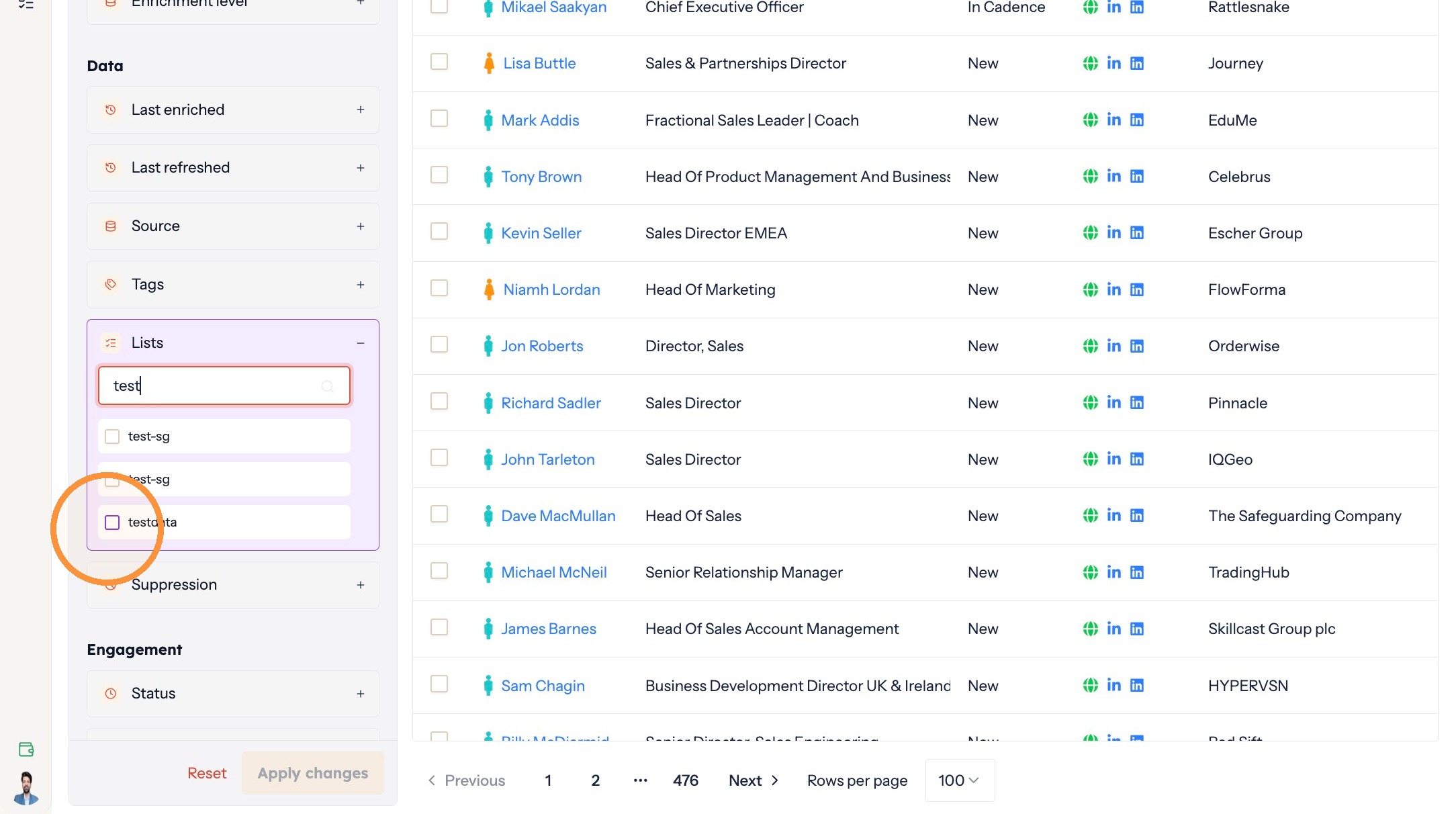
Selecting the list -
Under Contact data, expand Contact email or Contact LinkedIn URL, depending on which contacts you want to isolate.
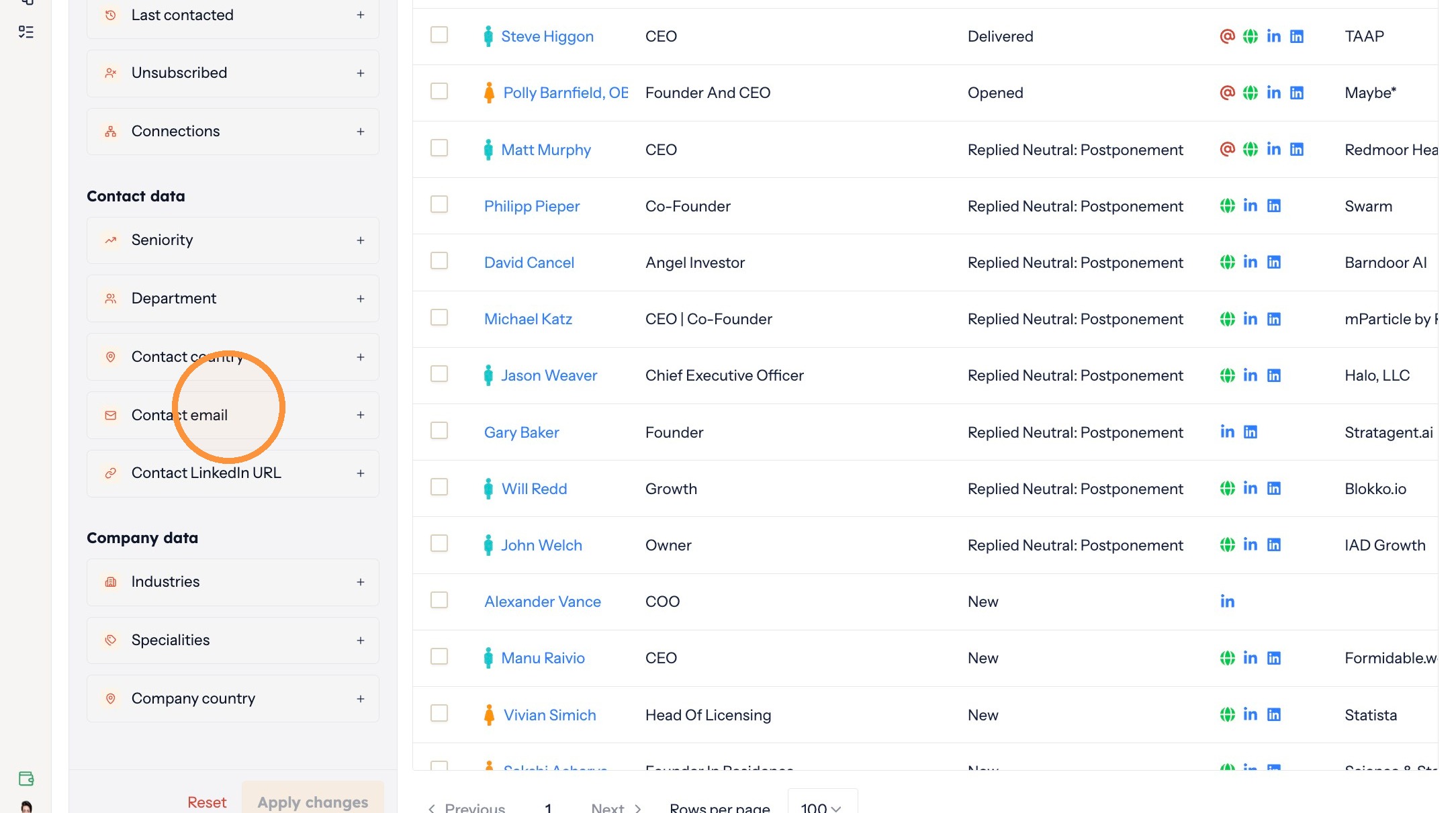
Choosing the field -
Select Is unknown. This leaves only the contacts where that field is empty.
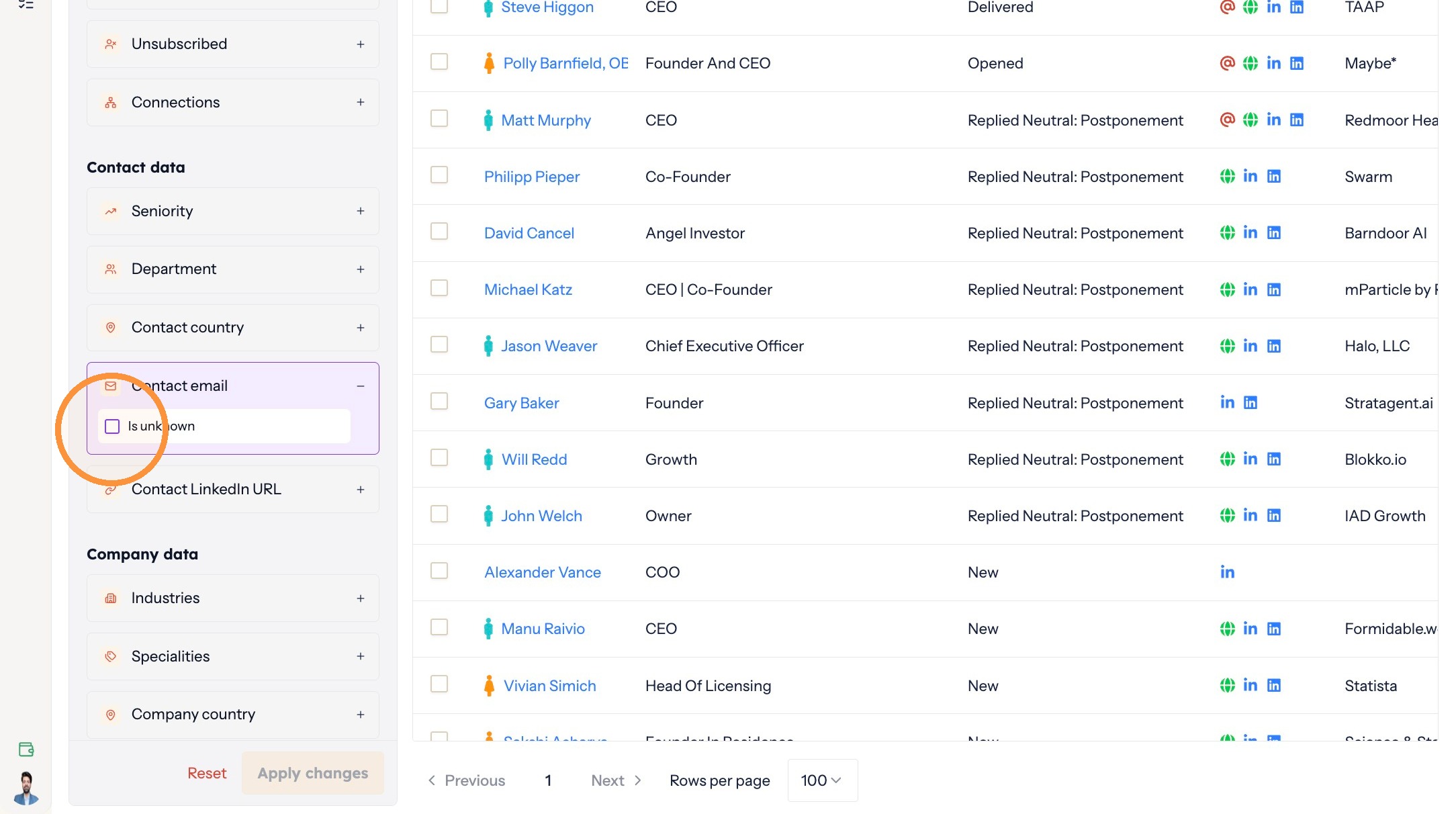
Filtering to empty values -
Click Apply changes.
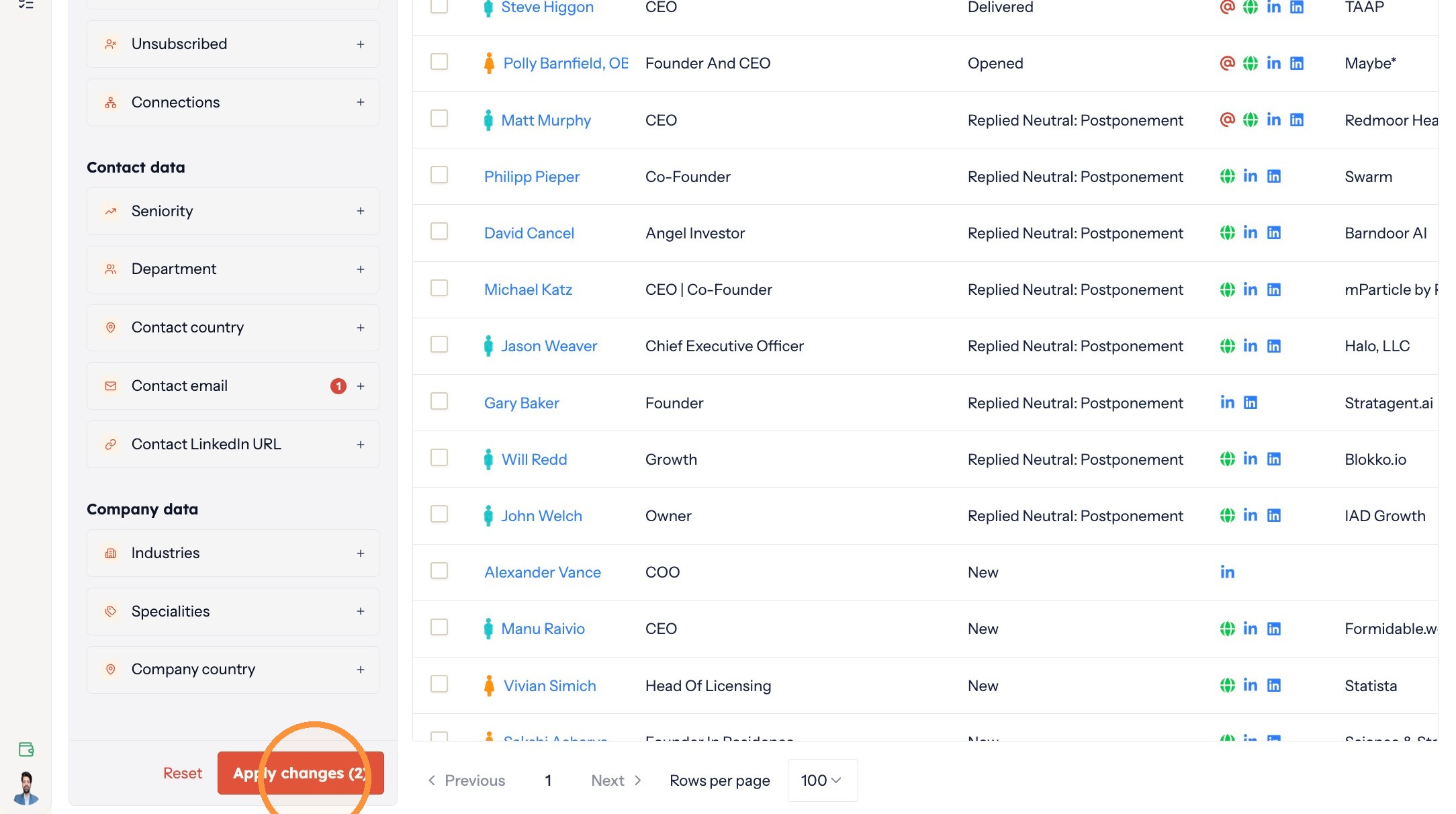
Applying the filter
Move them into the new list
-
Click the checkbox in the table header to select all contacts.
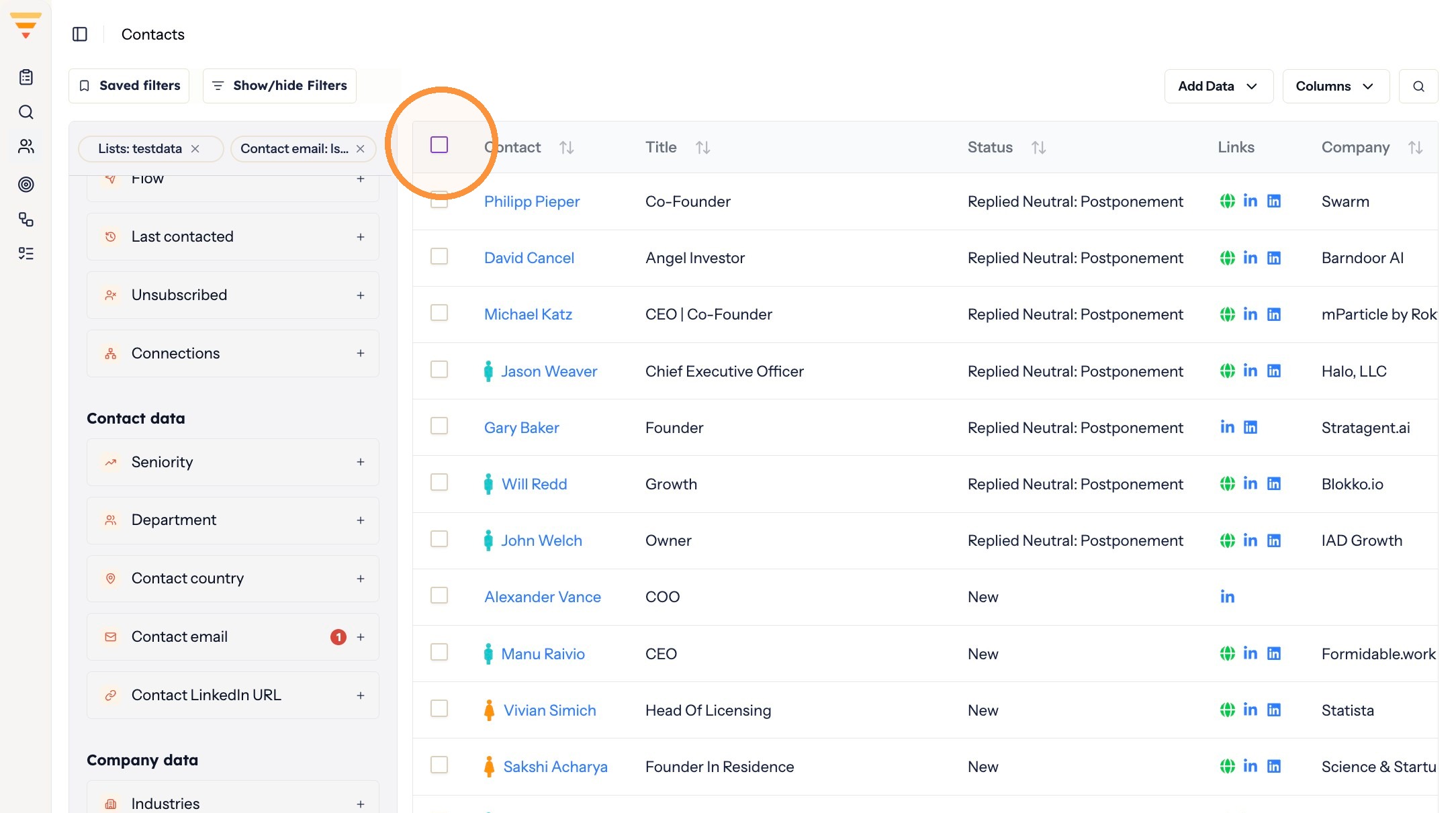
Selecting the contacts -
Choose whether to move only the contacts on this page or every contact matching the filters, then click Apply.
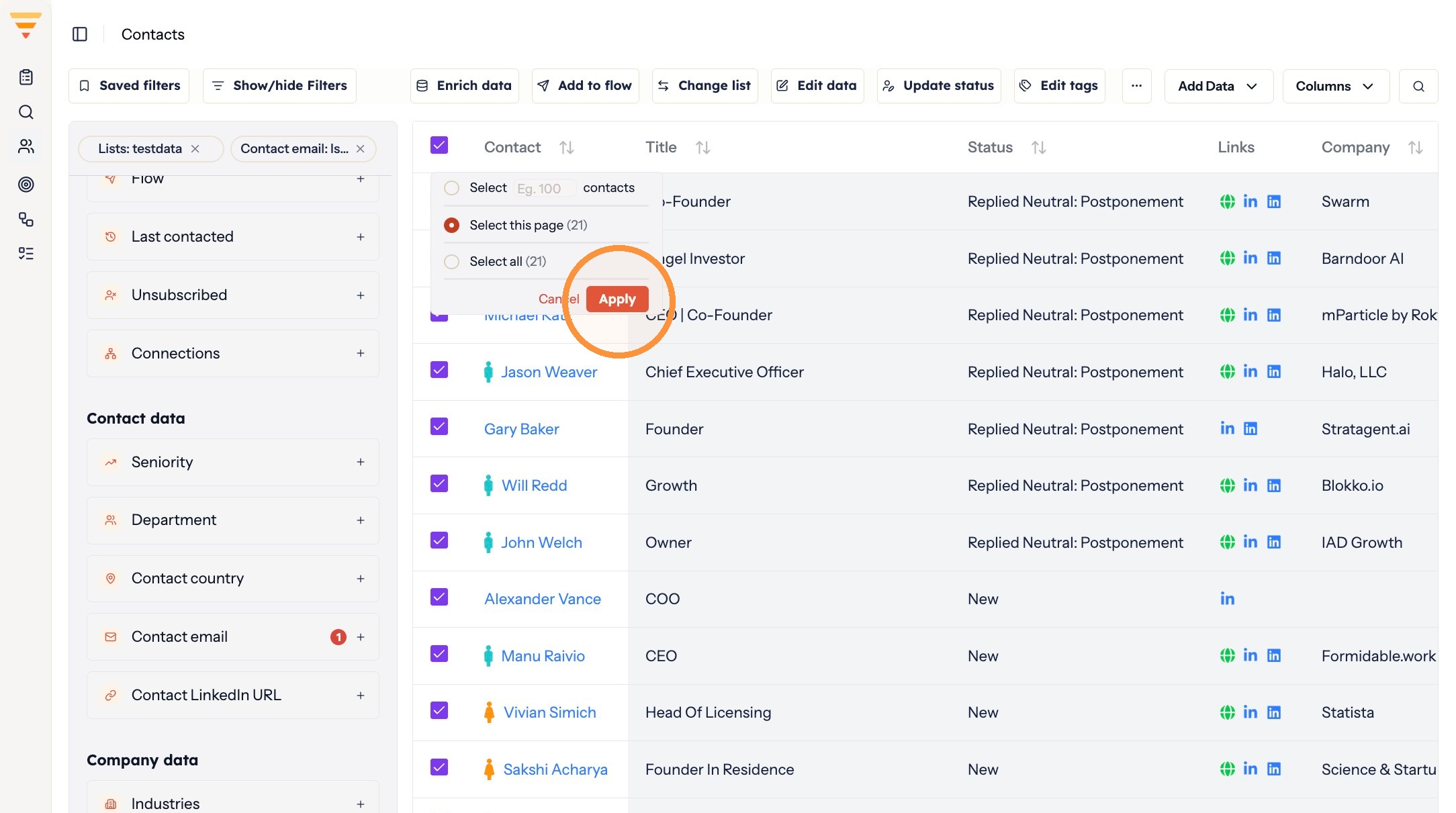
Choosing the scope -
Click Change list in the toolbar above the contact table.
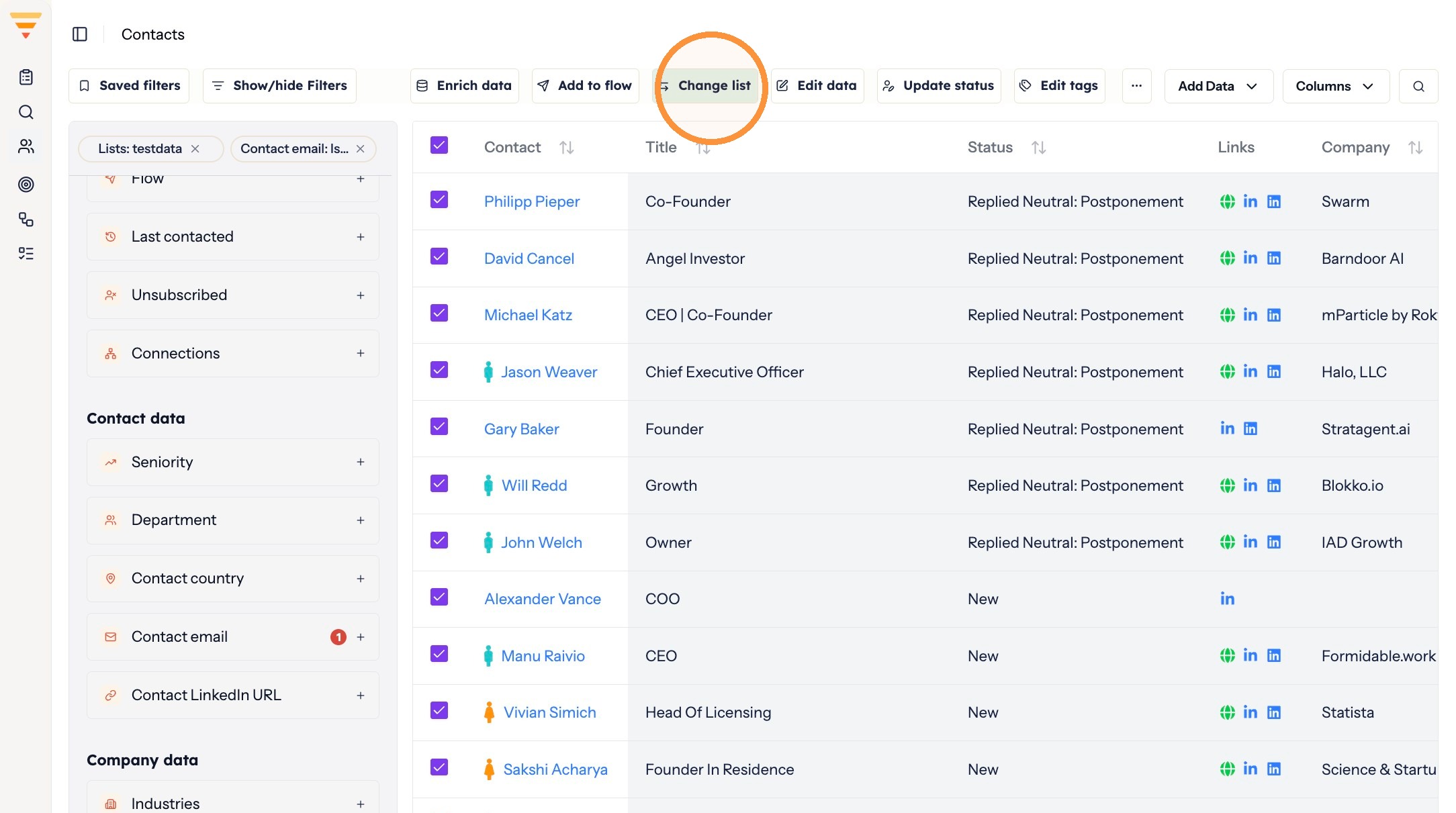
Opening the move dialog -
Select the list you created.
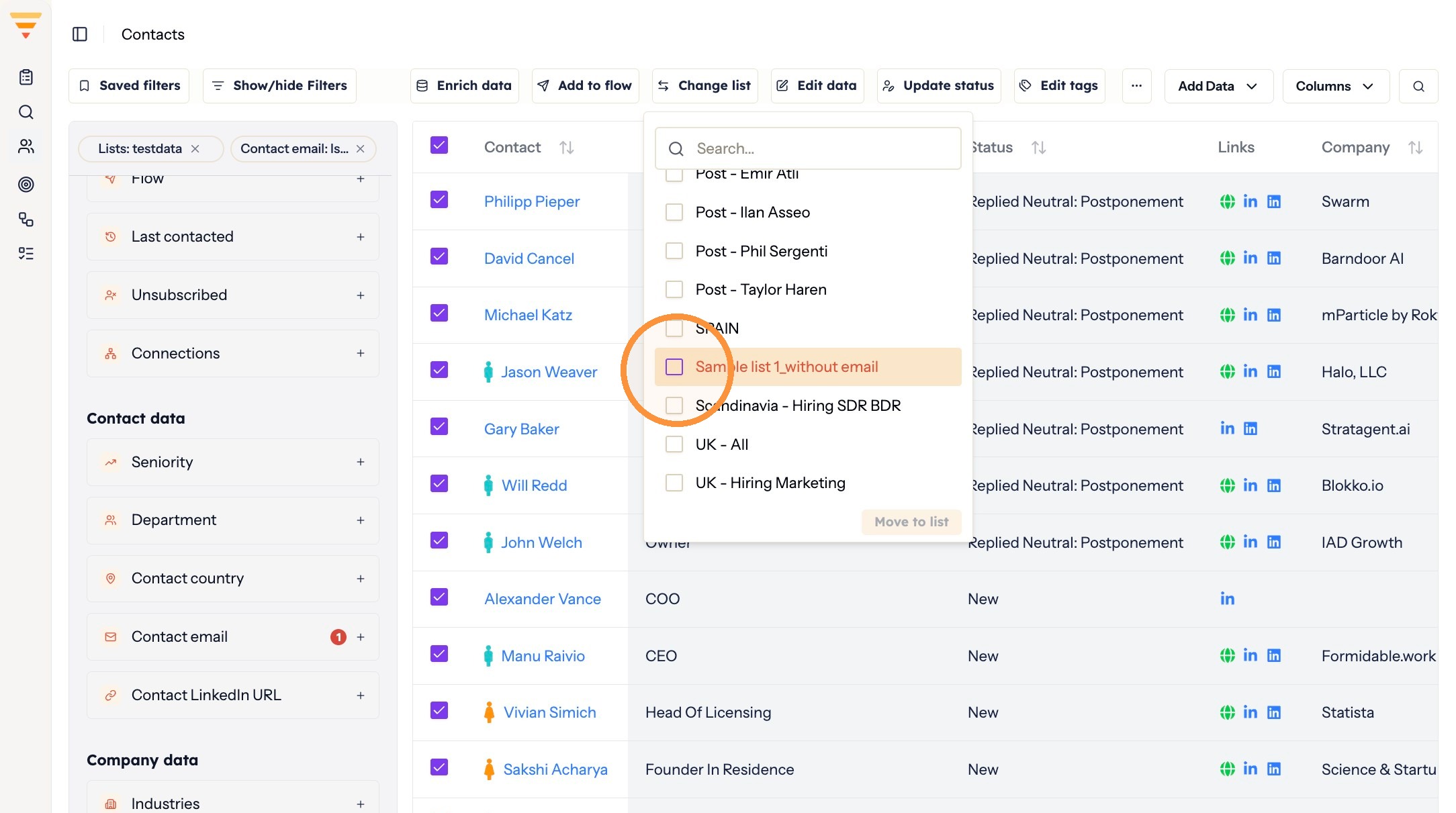
Choosing the destination -
Click Move to list.
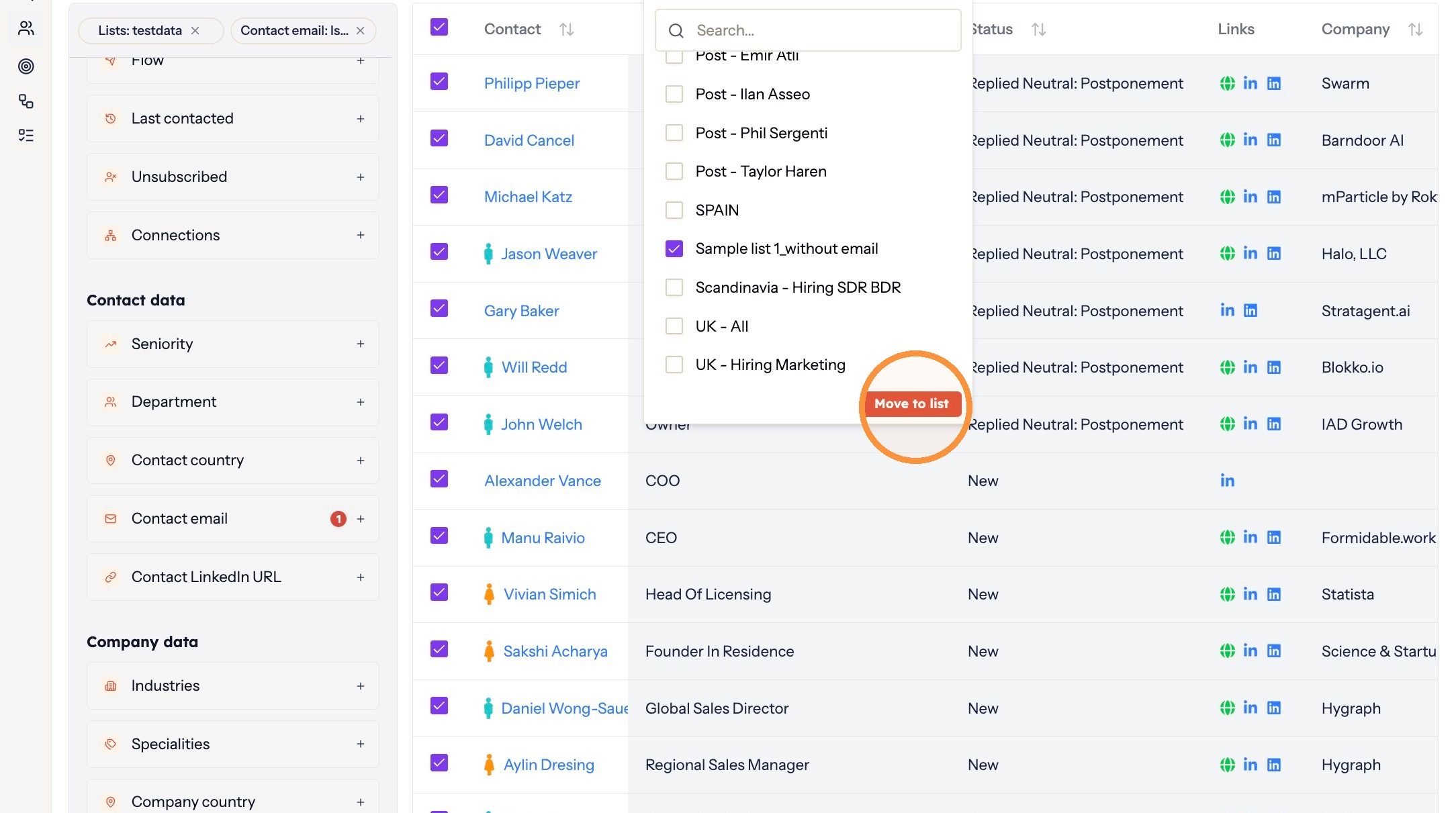
Completing the move -
Click the Lists icon and open your new list to confirm the contacts arrived.
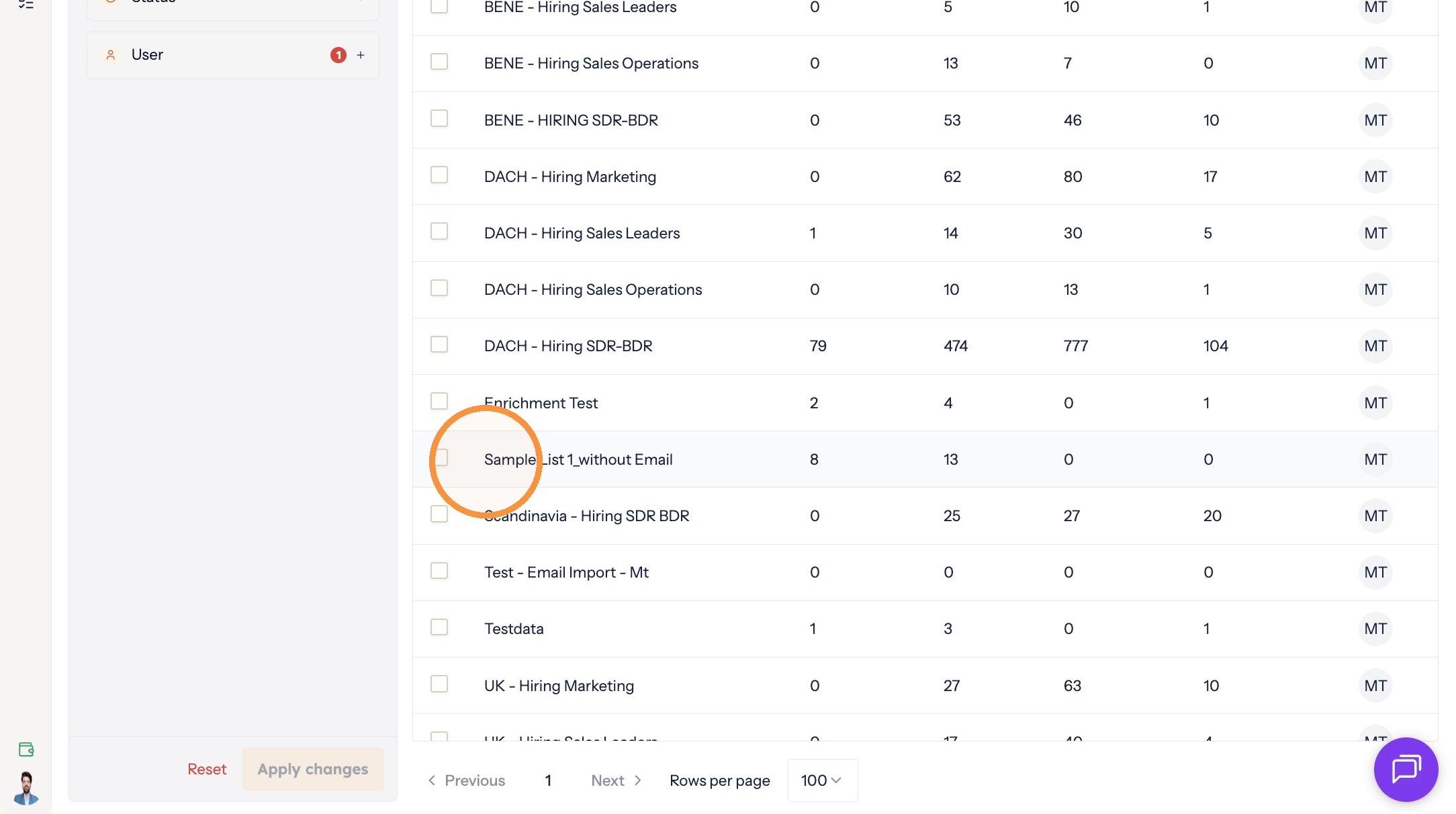
Confirming the move
The gaps are isolated. Your new list holds only the contacts missing that field, so you can enrich them, route them to another channel, or leave them out of your next flow deliberately rather than by accident.
Interactive walkthrough
Click through every step at your own pace.
The walkthrough loads from Scribe only after you click, so nothing third party runs on the page until then.
Common questions
Why isolate contacts with no email address?
Contacts with no email address are skipped when a flow sends. Moving them into their own list means you can see them, and route them into a channel they can actually be reached on.
Can I filter for missing email and missing LinkedIn URL at the same time?
Do one field at a time, so each set goes into its own list.
Related articles
- Data enrichment in hubsellWhat data enrichment is, why it matters for outreach, and where you choose it when you bring contacts into hubsell.
- Suppress and unsuppress contactsKeep individual contacts out of your outreach without deleting them, and put them back when you want to.
- Move contacts between listsReorganise your contacts by moving them from one list to another, without affecting their flows or tags.
- Manually update a contact's statusSet a contact's status yourself to stop or resume automation, for example when a conversation has moved offline.