

Invite team members
Add colleagues to your hubsell account so they can run their own outreach and share your data.
- Applies to
- All plans
Team members get their own login, and can be picked as the sending user when contacts are added to a flow.
Send an invitation
-
Click your profile icon.
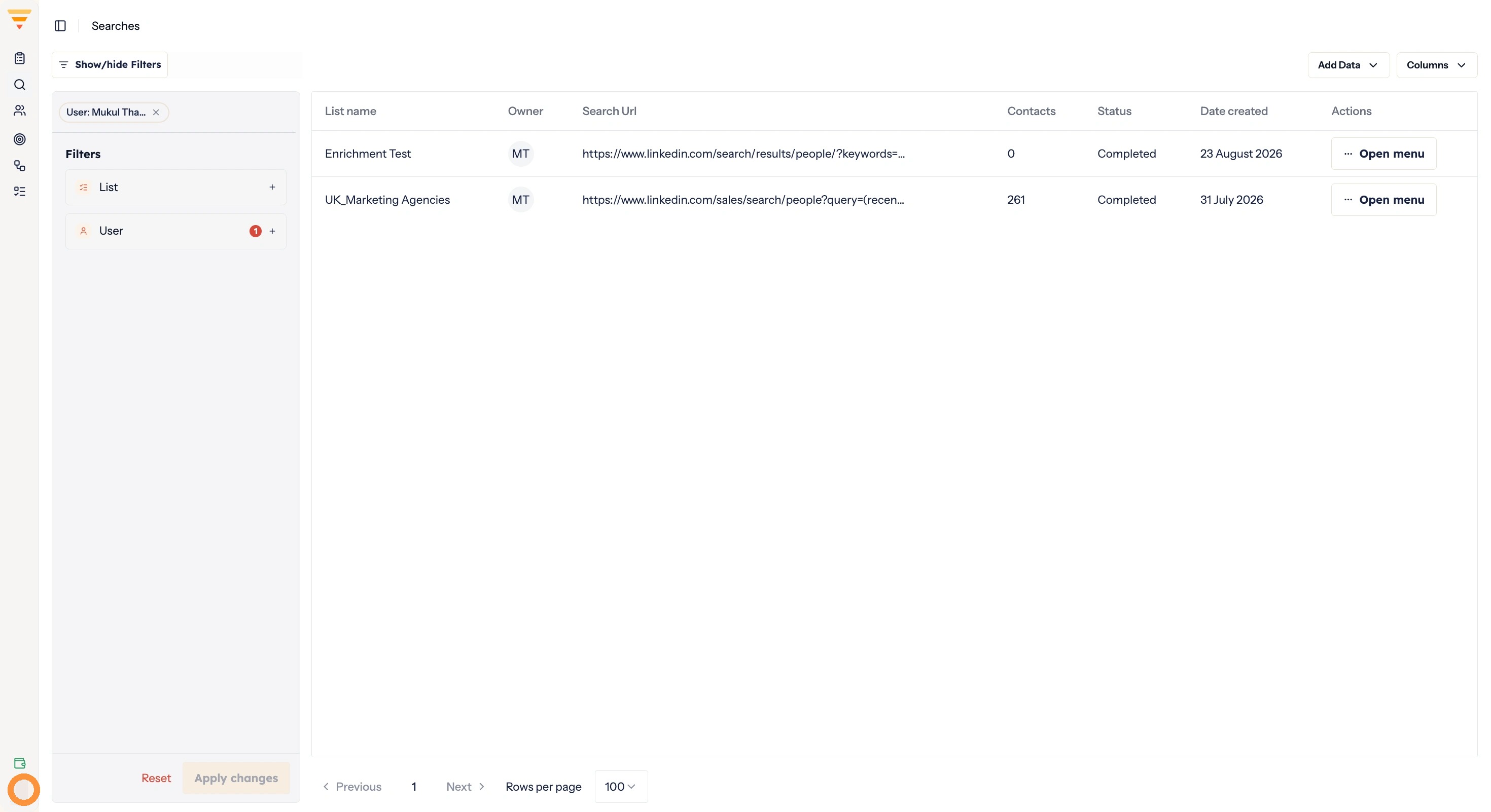
Opening the profile menu -
Click Company Settings.
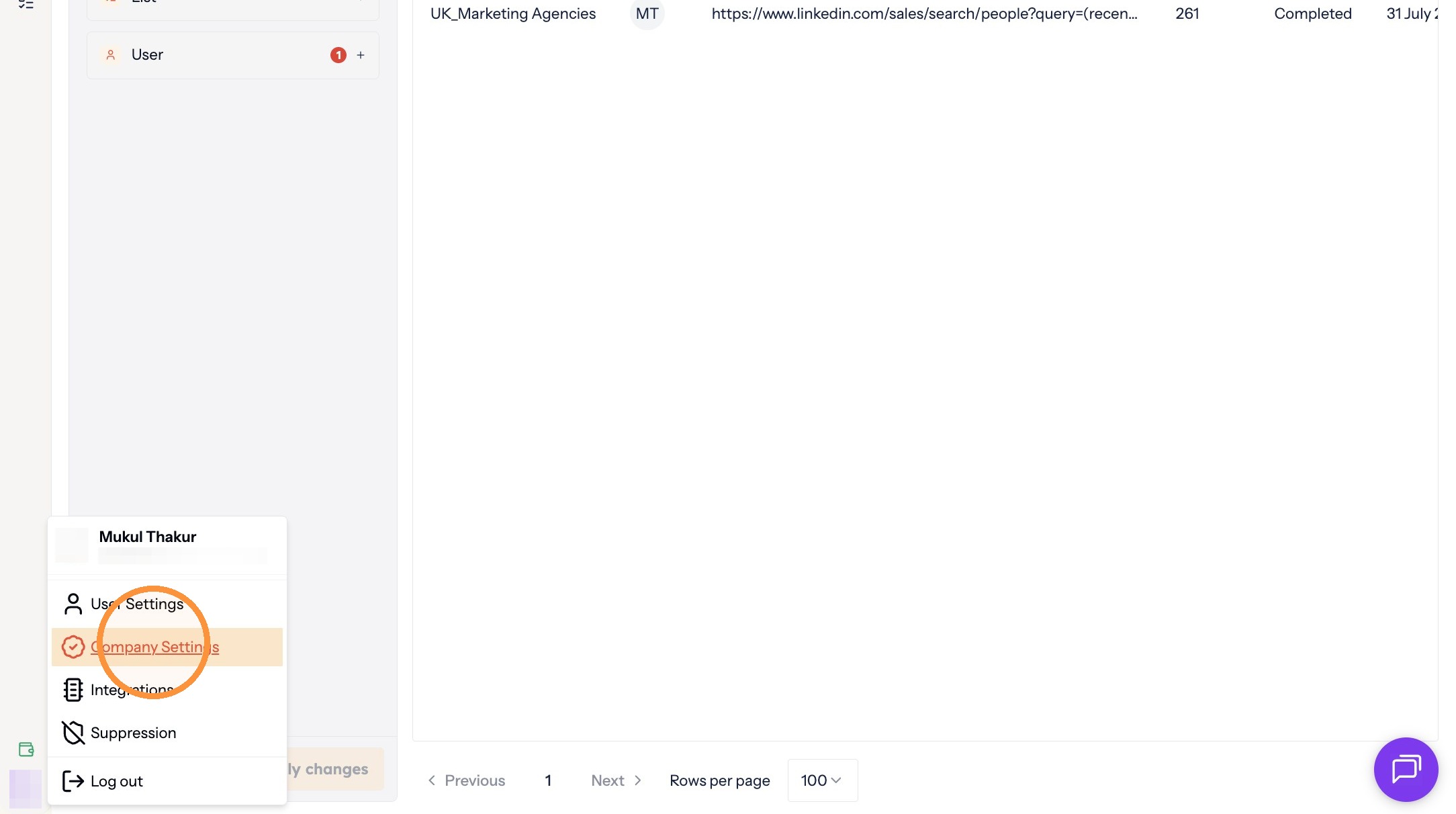
Opening Company Settings -
Click Team Management.
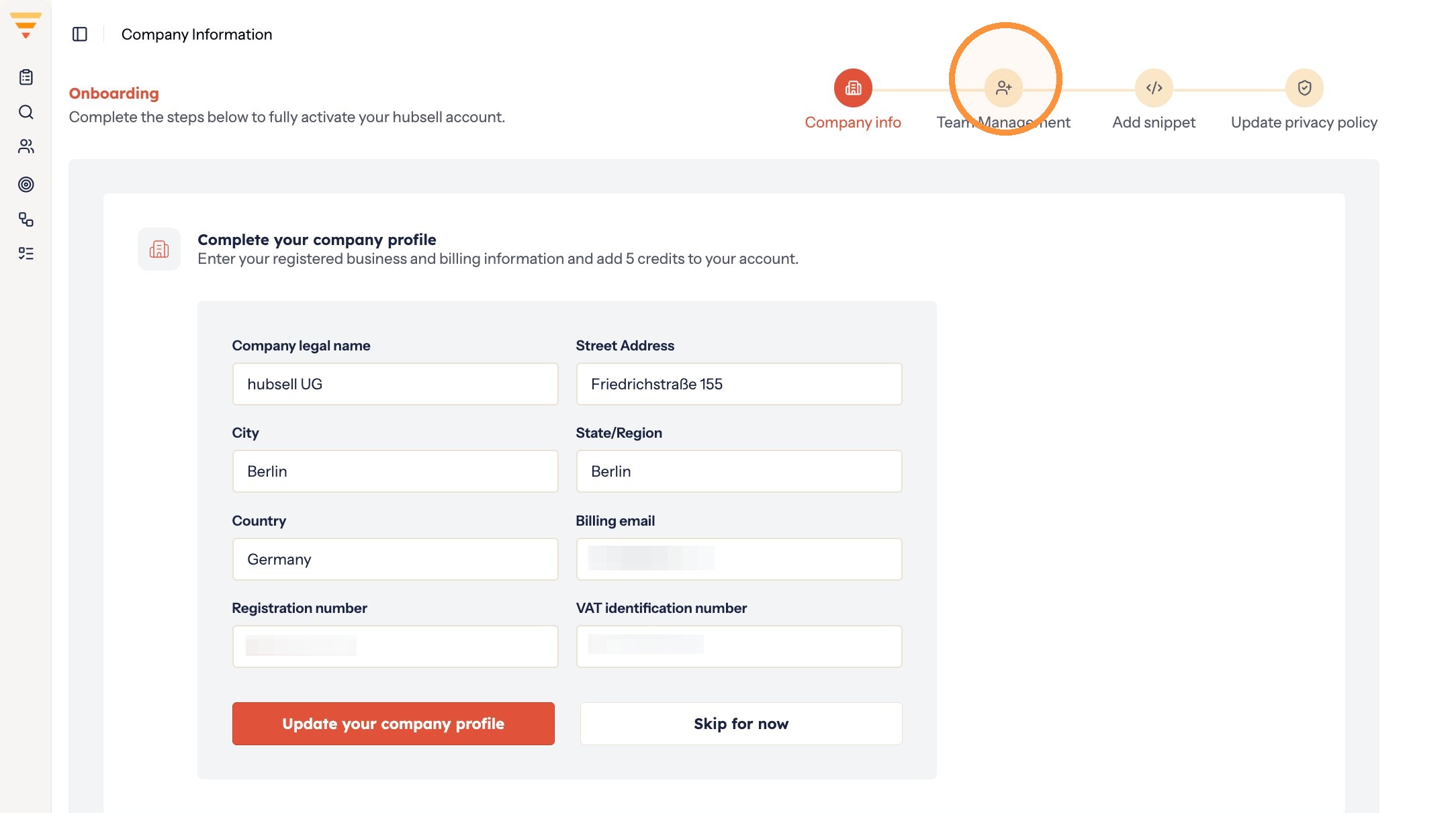
Opening Team Management -
Click Invite your team.
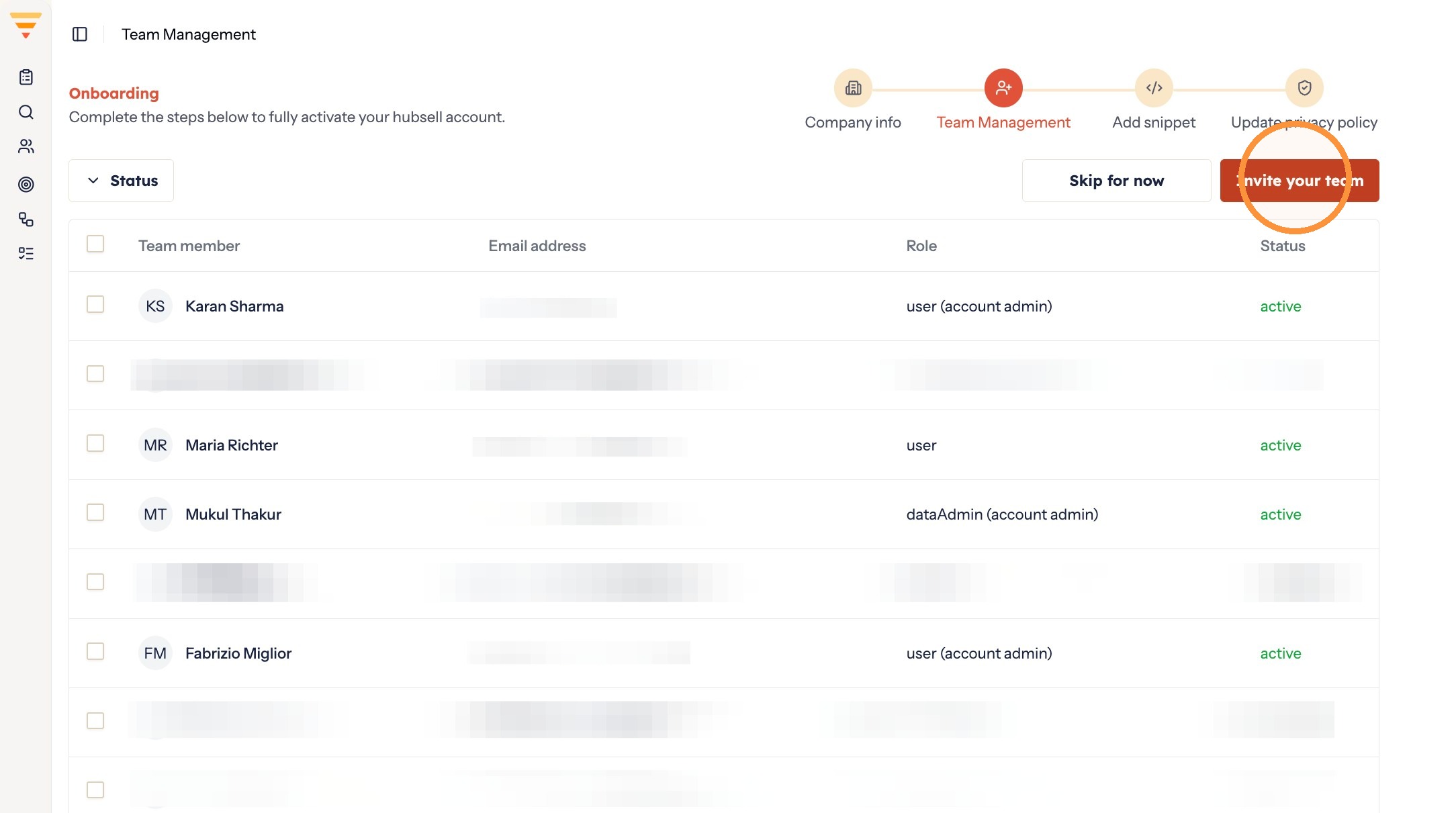
Starting an invitation -
In the Email field, enter the address of the person you want to invite.
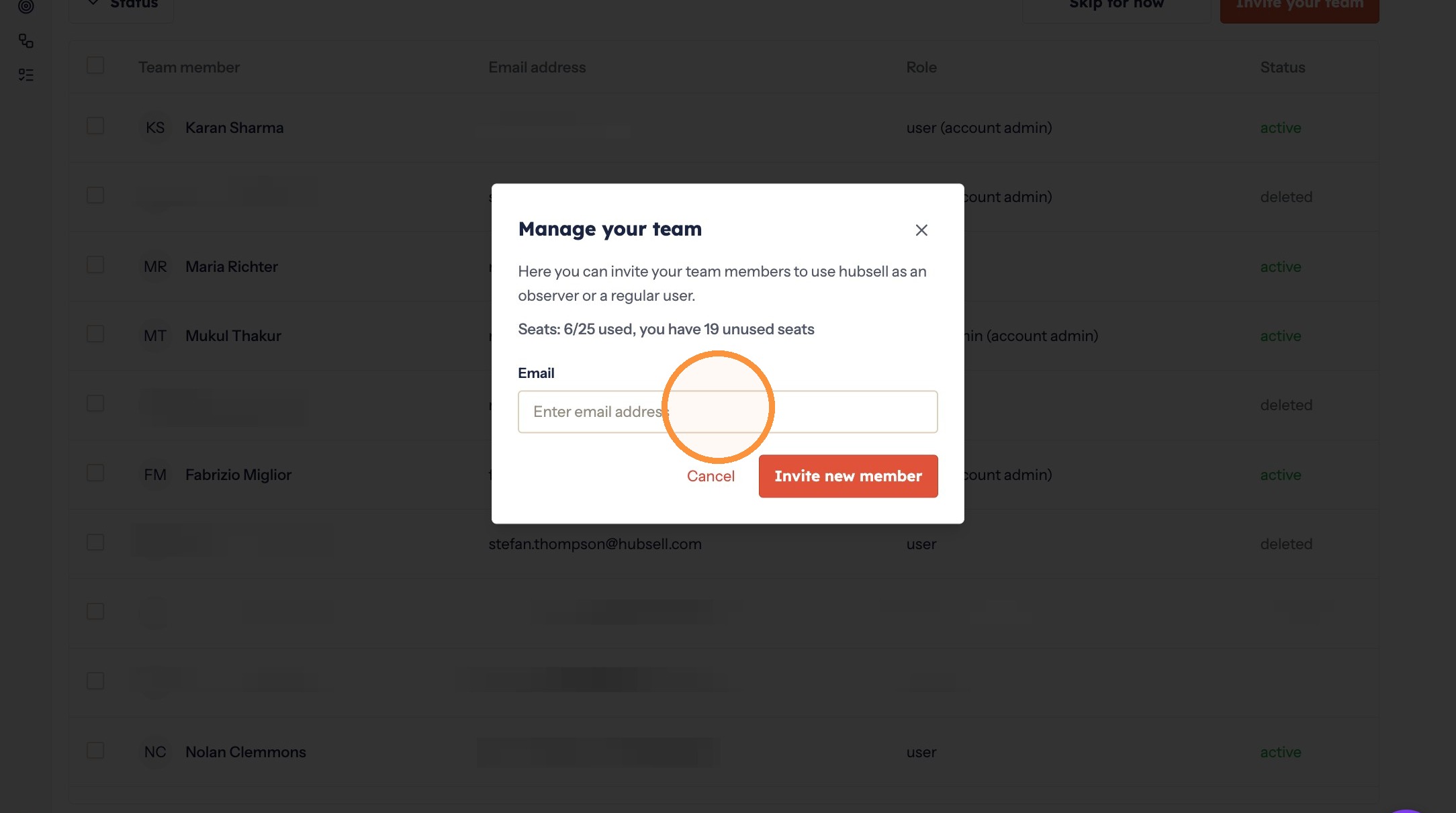
Entering their email address -
Click Invite new member.
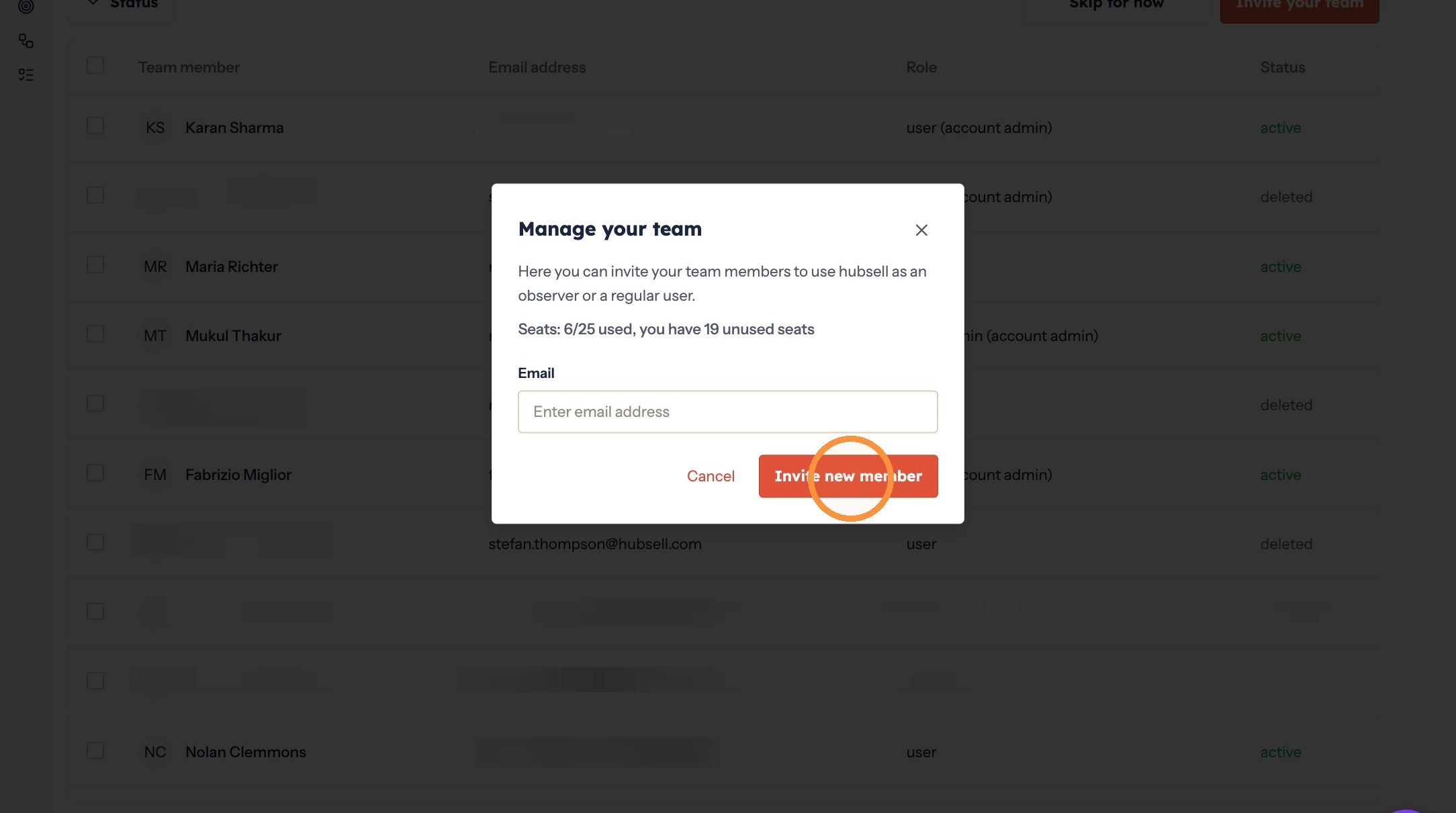
Sending the invitation
The invitation is on its way. Your colleague gets an email with a link to create their account, and appears under Team Management once they have.
Interactive walkthrough
Click through every step at your own pace.
The walkthrough loads from Scribe only after you click, so nothing third party runs on the page until then.
Common questions
How does someone join after I invite them?
They get an invitation email with a link to create their account.
Related articles
- Set up your personal and company accountComplete your personal profile and your company profile in hubsell. It takes about two minutes and gets both ready before you connect a mailbox.
- Connect your mailbox and LinkedInConnect the mailbox and LinkedIn account hubsell sends from, so it can send email and run LinkedIn actions for you.
- Source data into hubsellGet contacts into a hubsell list from a LinkedIn or Sales Navigator search, or from a CSV file, then tag and enrich them ready for outreach.
- Connect your CRM accountConnect HubSpot, Salesforce or Pipedrive to hubsell so you can push contacts across when you are ready.